


Introduction
There are many reasons why iPhone data gets lost. Such incidents occur due to accidental deletion, iOS updating failure, device factory reset or device damage. Photos, messages, contacts, and apps can be lost all of a sudden.
Many people usually rely on iCloud backup for restoring their data, but the problem is the normal restoring process requires the erasing of the current data on the device. Therefore, it becomes risky for those who have important new files on their iPhone.
In this guide, we will show simple and safe ways to recover data from iCloud backup without losing your current data.
Understanding How iCloud Backup Recovery Works
iCloud Backup keeps a lot of types of data from your iPhone such as pictures, messages, app data, settings, contacts, and notes. It is a way to make a copy of your device so that you can restore it later if your device is damaged or lost.
There’re two main possibilities for data recovery: a complete device restores and selective data recovery. A full restore will bring back to your device everything from the backup, whereas the selective recovery is like taking out only files you want without changing the rest of your current data.
Apple’s standard restoration procedure is a full device restore. So, the method here is that you have to factory reset your iPhone at first, and then the backup shall be restored on it. As a result, the backup completely replaces your present data.
That is one of the reasons why users are full of fear losing their freshly added files like a new bunch of pictures, messages or applications while using the default method. Anything that has not been backed up is likely to be deleted during the restore process.
Can You Recover Data from iCloud Backup Without Resetting iPhone?
Apple only permits you to restore iCloud backups if the iPhone has been factory reset. You can also try using third party apps to recover data without resetting device.
Method 1: Apple’s Official Restore Method
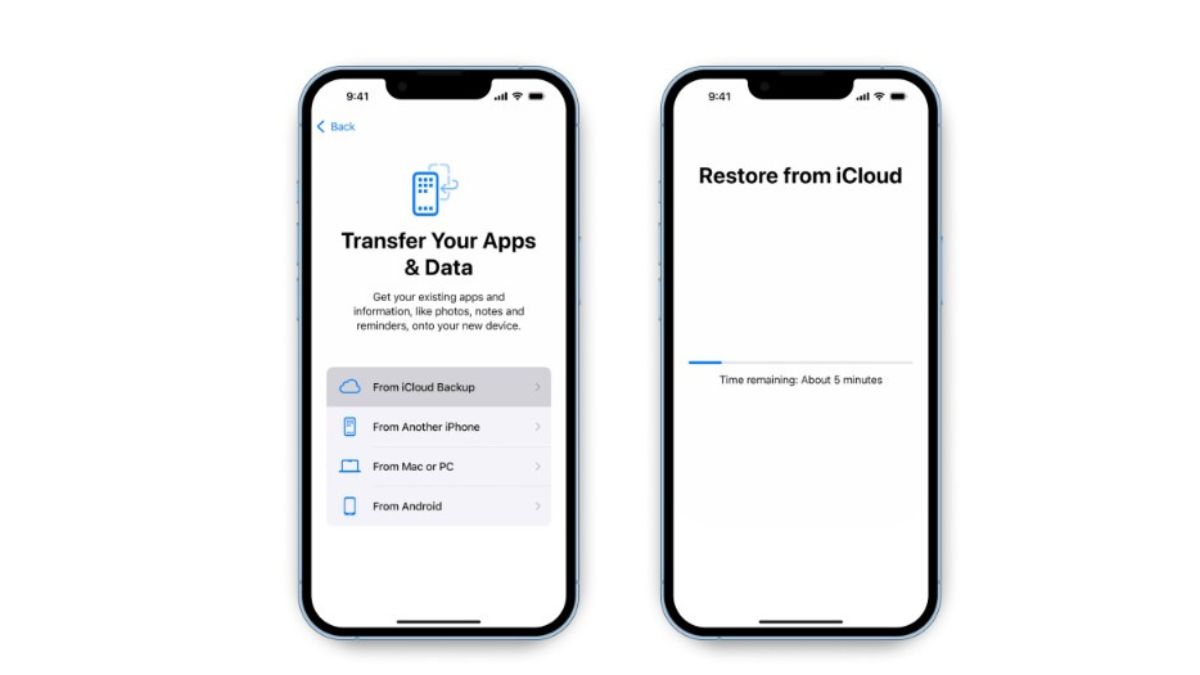
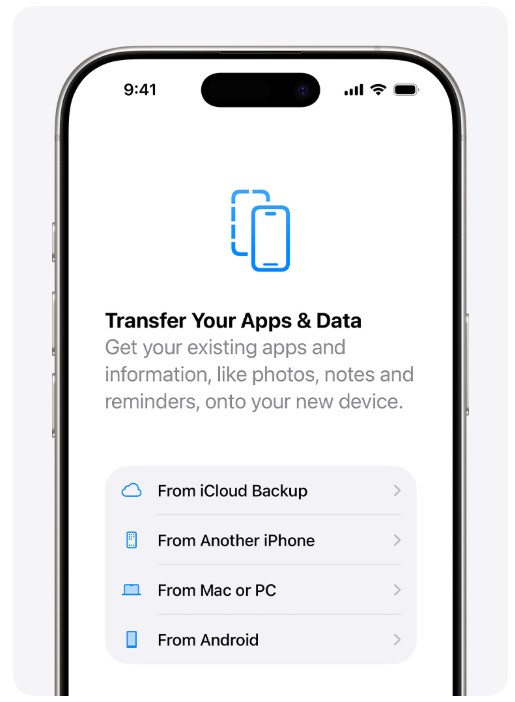
This is the conventional way Apple offers to restore iCloud backup. Here, you are required to first factory reset your iPhone and then during the setup, restore the backup.
This approach not only brings you the full data of the backup but all data on the device will be deleted/overwritten.
Step 1. Go to “Settings > General > Transfer or Reset iPhone” and tap Erase All Content and Settings.
Step 2. Set up your iPhone again and choose Restore from iCloud Backup when prompted.
Method 2 — Using Third-Party Recovery Software
Dr.Fone – Data Recovery (iOS) provides a more advanced way to recover iCloud backup data without resetting your iPhone. It lets you access your iCloud account directly, scan available backups, and extract only the files you need.
First, it lets you scan for free and preview files before you decide to restore. Besides, you can get back to your photos, messages, contacts, WhatsApp chats, notes, call history, and other app data either from your iPhone or iCloud backup.
Selective recovery is one of its main benefits it allows you to restore only the files you want without having to restore everything. Moreover, it carries out the scan using a read-only method so that your current data is not overwritten or lost during recovery.
How to Recover Data from iCloud Backup Without Losing Current Data
Step 1. Install and launch Dr.Fone
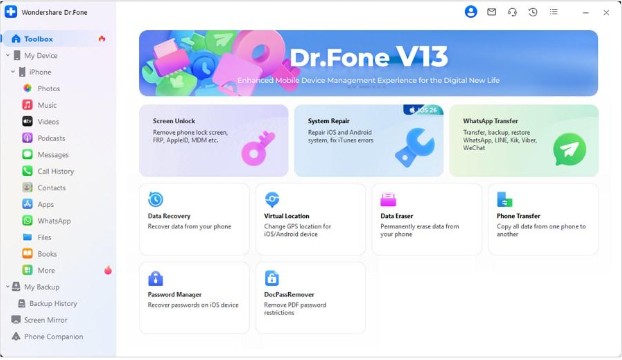
Download and install Dr.Fone Data Recovery (iOS) on your PC. From the main interface, go to Toolbox > Data Recovery.
Step 2. Decide on iCloud recovery mode
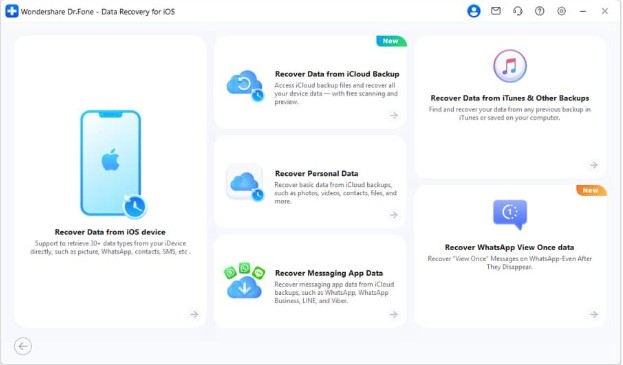
First, set iOS as the type of your device and click on Recover Data from iCloud Backup.
Step 3. Log in to iCloud
Enter your Apple ID and password, then click the Sign In button. In case two-factor authentication asks you for it, do it to verify your account.
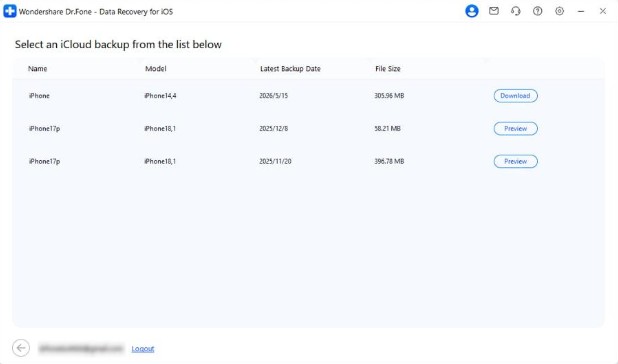
Step 4. Select and preview backup
Once the tool has found the backups, select the one you want, click Download.
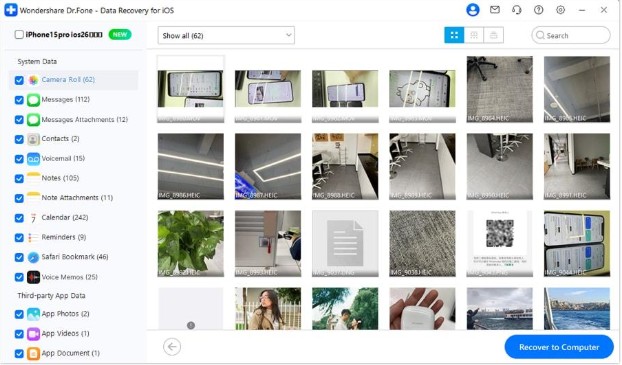
Step 5. Recover selected data
Select data files and tap the Recover to Computer button to save them on your PC.
Tips to Avoid Losing Current Data During Recovery
There are several simple steps you can take to safely recover your iCloud data without replacing the files you currently have:
- Before initiating any recovery procedure, it is advisable to back up your iPhone. In this way, your most recent data will still be on file.
- Stay away from overwriting existing backups, as one risk is that certain newer files could be discarded in favor of older data.
- Look at your iCloud storage space to make sure there is enough room for the data you would like to add or restore.
- Do keep your device connected with stable Wi-Fi as this will help in avoiding any kind of interruption during the recovery process.
- An alternative to restoring a complete backup is to use selective recovery tools that only require you to restore the files that you need.
Why Selective Recovery Is Better Than Full iPhone Restore
Selective recovery is generally a safer and more practical option compared to a full iPhone restore because it gives you more control over your data.
| Full Restore | Selective Recovery |
| Erases current data | Keeps current data safe |
| Restores everything | Recovers only selected files |
| No preview option | Allows preview before recovery |
| More time-consuming | Faster and more efficient |
| Higher risk of data loss | Safer with lower risk |
Conclusion
Data recovery from an iCloud backup does not necessarily entail erasing your existing files. Apple’s standard restoration method may replace your current data, however, there are methods of selective recovery, for instance, that grant you more control and protection. With the right steps and verifying your backups effectively, you will be able to restore the files that matter to you without endangering your most recent pictures, texts, or applications.
For those who appreciate a more straightforward and risk-free way, Dr.Fone Data Recovery (iOS) is an excellent tool for reaching iCloud backups, examining data prior to recovery, and restoring only desired items. This functionality of selective recovery not only assists you to get rid of uncalled-for loss of data but also ensures you keep your current iPhone data completely intact.