

Outlook continuously synchronizes emails and other mail items to and from the mail server to keep the Inbox and other folders updated. But at times, you can face a situation where your Outlook application stops showing new emails in the Inbox. When this issue occurs, you may miss some important messages and experience delays in communication. There could be various reasons for the Outlook Inbox not updating emails issue. This guide walks you through the common causes behind this issue and some tested methods to fix it.
What are the Causes of the “Outlook Inbox not Updating Emails” Issue?
Here are some common reasons for the Outlook Inbox not updating emails issue:
- Unstable internet connection
- Outlook is in offline mode
- Corrupted PST file
- Send/receive settings are not correctly set
- Conflicts caused by Outlook add-ins
- Outdated Outlook application
- Corrupted Outlook profile
- Synchronization problems
Methods to Fix “Outlook Inbox Not Updating Emails” Problem
Below are some tried and tested solutions you can follow to fix this issue:
- Check your Internet Connection
Firstly, check and confirm that your internet connection is stable. Outlook needs uninterrupted connectivity to sync emails. If your network is slow or unstable, it may not receive new messages. You can verify the internet connection by opening other web pages. You can also perform a quick network speed test on sites, like Fast.com or Speedtest by Ookla. If your internet connection is stable, then try the next methods.
- Disable Work Offline Mode
If Work Offline mode is enabled in your Outlook, it disconnects from the mail server and stops receiving new emails. If this is the case, you can disable the Work Offline mode. Here’s how:
- Open Microsoft Outlook.
- Click on the Send/Receive tab in the top menu.
- Look for the Work Offline option.

- If it is highlighted, click on it to disable it.
- After disabling it, click Send/Receive All Folders to update your Inbox.
- Update Outlook Application
If you are using an outdated Outlook version, then it may have developed bugs, glitches, or issues, causing compatibility or synchronization problems. So, check and update your email application. The steps are as follows:
- Open Microsoft Outlook.
- Click on File in the top menu.
- Select Office Account.
- Click Update Options.
- Choose Update Now.
- Outlook will check for available updates and install them automatically.
- Restart Outlook after the update process is completed.
- Check Send/Receive Settings
Outlook’s Send/Receive settings check for and update new emails at scheduled intervals. If these settings are disabled, it will not update new emails. You can check and change these settings to resolve the Inbox not updating issue. Here’s how:
- Open Outlook.
- Click on the File tab.
- Select Options.
- Click Advanced from the left panel.
- Scroll down to the Send and Receive section.
- Click Send/Receive.
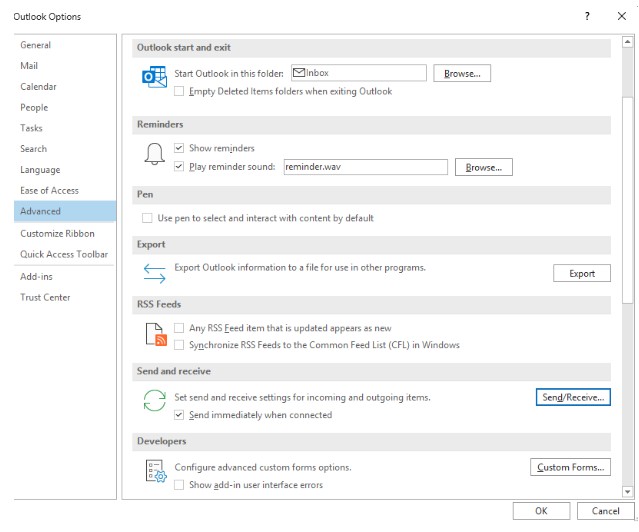
- In the Send/Receive Groups dialog box, check the box for ‘Schedule an automatic send/receive every’ and set the time interval – 5 to 10 minutes.
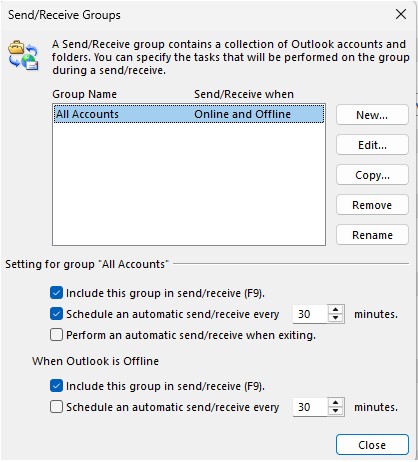
- Click OK to save the changes.
- Restart Outlook and check whether new emails are appearing.
- Disable Faulty Outlook Add-ins
Add-ins can improve an application’s functionality. But outdated or faulty add-ins can interfere with Outlook’s processes. This may also cause the Inbox not updating emails issue. You can fix this issue by disabling the add-ins. Here’s how:
- Open Outlook.
- Click File and select Options.
- Go to Add-ins.
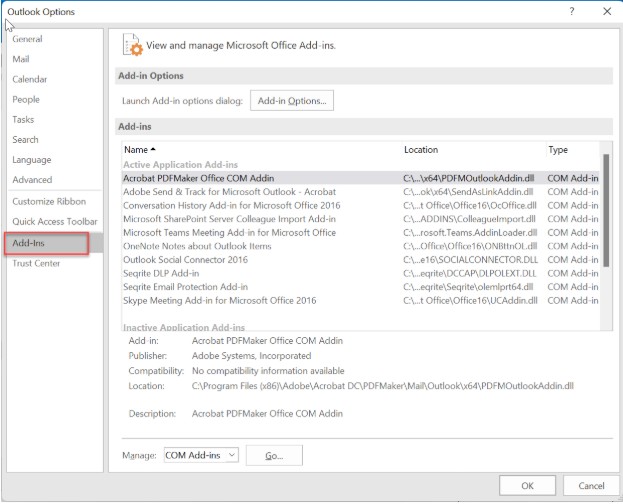
- At the bottom of the window, select COM Add-ins in the Manage dropdown.
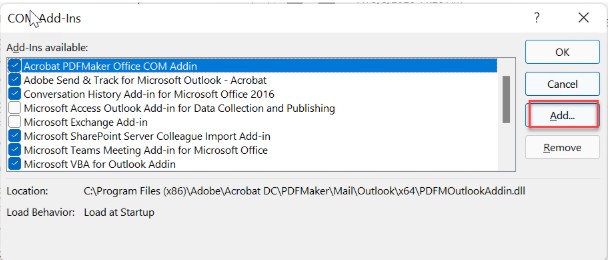
- Uncheck all add-ins to disable them.
- Click OK.
- Restart Outlook to verify if the issue is resolved.
If the problem is fixed, enable add-ins one-by-one to identify the problematic add-in.
- Create New Outlook Profile
A corrupted Outlook profile can cause various issues, including emails not updating issue. Creating a new profile can resolve profile-related problems and may help you to get back your emails. Here’s how to create a new profile:
- Close Microsoft Outlook.
- Open Control Panel on your computer.
- Click Mail.
- Select Show Profiles.
- Click Add to create a new profile.
- Enter a name for the new profile.
- Add your email account details and complete the setup.
- Select Always use this profile and choose the newly created profile.
- Click Apply > OK.
- Restart Outlook.
- Repair the PST file
If your PST file is partially damaged or inconsistent, it may cause emails not updating problem. You can use ScanPST – Outlook’s Inbox Repair tool – to repair your corrupted PST file. The steps are as follows:
- Close Microsoft Outlook.
- Locate the ScanPST.exe on your computer.
- Double-click on it to open the tool.
- Click Browse and select the Outlook data file (.pst).
- Click Start to begin scanning the file.
- If errors are found, click Repair.
- After the repair process is completed, restart Outlook.
- Check if your Inbox is updating properly.
In the case of a severely corrupted, oversized, or badly damaged PST file, Scanpst.exe fails to repair it. In this situation, you can use Outlook PST repair tool, like Stellar Repair for Outlook. This tool is designed to repair large, severely corrupted PST files and recover complete mailbox items without any data loss. It also maintains the folder structure during the PST repair process. Apart from PST, you can save the repaired file items in multiple formats like HTML, PDF, EML, etc. You can also directly export the recovered mailbox items to an Outlook profile or Office 365 account.
Conclusion
Outlook Inbox not updating emails problem may occur if there is some issue with synchronization or due to other reasons. In this article, we have discussed various ways to fix this problem. If your PST file is damaged, you can fix it using ScanPST. But if the file is severely damaged, the Inbox Repair utility might not be able to fix it. In such a situation, use a professional PST repair tool. You can go for Stellar Repair for Outlook – an advanced tool to repair corrupted PST file of any size. With the help of this tool, you can recover all your mailbox data from the corrupted PST file.