

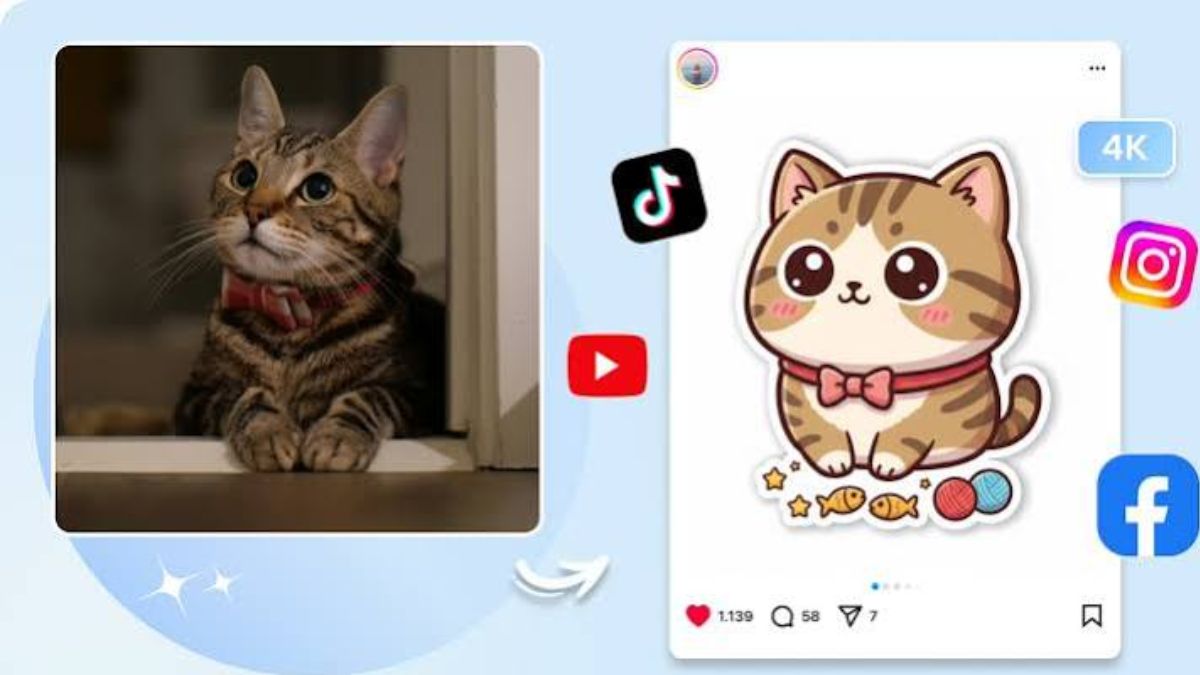
Sometimes a sentence is too slow. A tiny dancing avocado or a very tired cartoon cat can say “I’m exhausted” faster and more charmingly than any text. That’s why stickers have become a language of their own in chats. If you’ve ever searched for the best free AI image generator to make your own pack, this guide shows what that process looks like with Dreamina. You’ll pick a character, write a prompt, and finish stickers that feel like yours. Plans and credits can change, so check what Dreamina currently offers before you begin, and then let’s get designing. You’ll finish with a pack you can actually use.
Why stickers beat plain text
Stickers carry tone. A thumbs-up from a cartoon cat translates into fun, but the same message in just plain words sounds dull. They also give you a personal brand: a recognizable character your friends, fans, or customers start to associate with you. Creators use them to grow communities, small shops use them for free marketing, and families use them to inject humor into group chats. A good sticker is simple, expressive, and instantly readable. They also work in any language, which helps with global chats.
Choosing a character and a mood set
Start with a single character and a handful of reactions:
- Thumbs up: approval and thanks
- Laughing: the “this is hilarious” moment
- Sleepy: the universal Monday feeling
- Celebrating: confetti, party hats, victory
- Shocked: wide eyes and a dropped jaw
- Heart: a warm, simple thank-you
An avocado, a round cat, or a tiny ghost all work well, since the emotions are easy to read. Choose something you’d enjoy drawing a dozen times.
Make your sticker in three Dreamina steps
Step 1: Create a text prompt
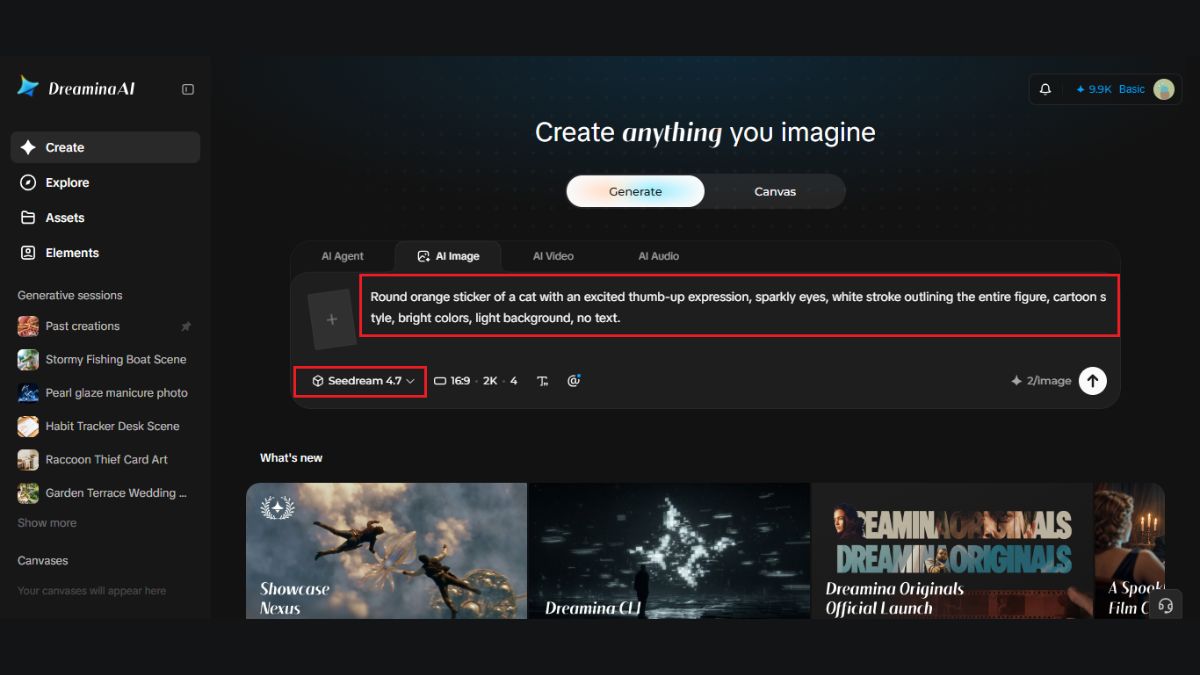
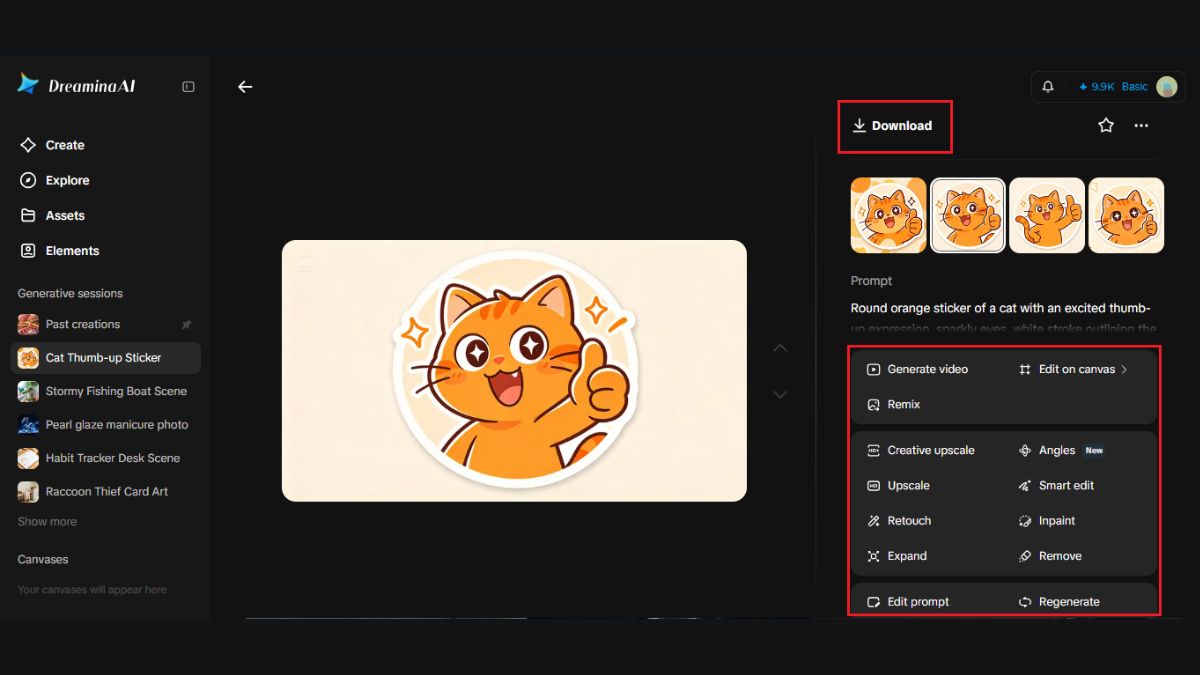
Go to Dreamina and write a very specific text prompt on the character, the facial expression, the style, and the background.
Here is what you may try: Round orange sticker of a cat with an excited thumb-up expression, sparkly eyes, white stroke outlining the entire figure, cartoon style, bright colors, light background, no text.
No text within the image is allowed; Captions can be added afterwards.
Step 2: Set up parameters and generate
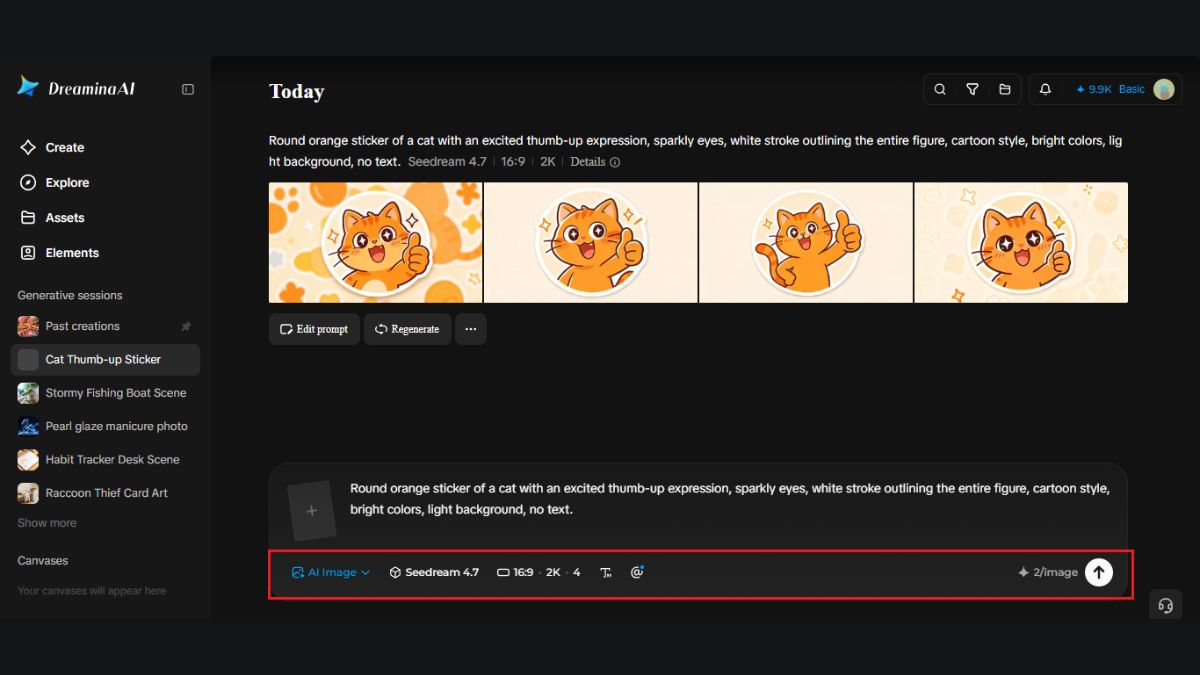
Select your model, choose square aspect ratio, set up the size and resolution (1K or 2K). Now click on the Dreamina icon and hit generate. While stickers usually look good in a small format, 2K provides some extra freedom for cropping and editing. Try 1K first.
Step 3: Customize and download
You can customize your sticker using the AI tools from Dreamina. Inpaint will correct only one element, such as a paw or an eye. Expand will make some extra room, if the character was cut out. Remove will erase extra marks, and retouch will fix any rough edges. Click Download button when everything is okay. Edges should be clean for stickers, pay attention to that.
Keeping shapes bold
Stickers are tiny, so the design needs to read at a glance. Ask for thick outlines, flat colors, and exaggerated expressions. Avoid thin lines and small details, which disappear at chat size. Test by shrinking your image to the size of a thumbnail. If you can still tell what the character is feeling, you’re in good shape. If not, simplify the prompt and try again. Big eyes and big hands help.
What Seedream 5.0 Pro adds to sticker design
Consistent, clean artwork matters for a pack, and Seedream 5.0 Pro offers some helpful tools.
Fine edits on small areas
Point selection, lasso, and sketch guidance let you adjust an expression or a hand without redoing the character. It’s perfect for fixing a wonky smile.
Layered visual elements
Subjects, backgrounds, and effects are handled separately, which makes it easier to remove or swap a background. That makes cutouts easier.
Crisp 2K output
Higher resolution keeps outlines clean, even when you scale or crop. Clean outlines look professional.
Text and prompts in many languages
Support for 14 languages helps you write prompts and plan sticker captions for different audiences. Bilingual packs can reach more people.
Writing the expression
Expressions are the whole point. Ask for big eyes, a mouth that matches the emotion, and a pose that supports it, like arms up for celebration or a drooping head for sleep.
Refer to props minimally, for example, confetti, a pillow, or a small heart. Should the face not convey the intended message within a second, then re-generate the same. Avoid contradictions in messages like a happy mouth with angry eyebrows unless that contradiction itself is the punch line.
Backgrounds and cutouts
Most messaging applications perform optimally when using stickers with transparent backgrounds. Ask for a plain, solid background in your prompt, which makes cutouts cleaner. Then remove the background in an image editor and export a transparent PNG. Every app has its own size and format rules, so check the current guidelines before you upload. Leave some space around the character to ensure that the edges do not get chopped off. Keep the original picture handy for any corrections needed in the cutout process.
Building a pack
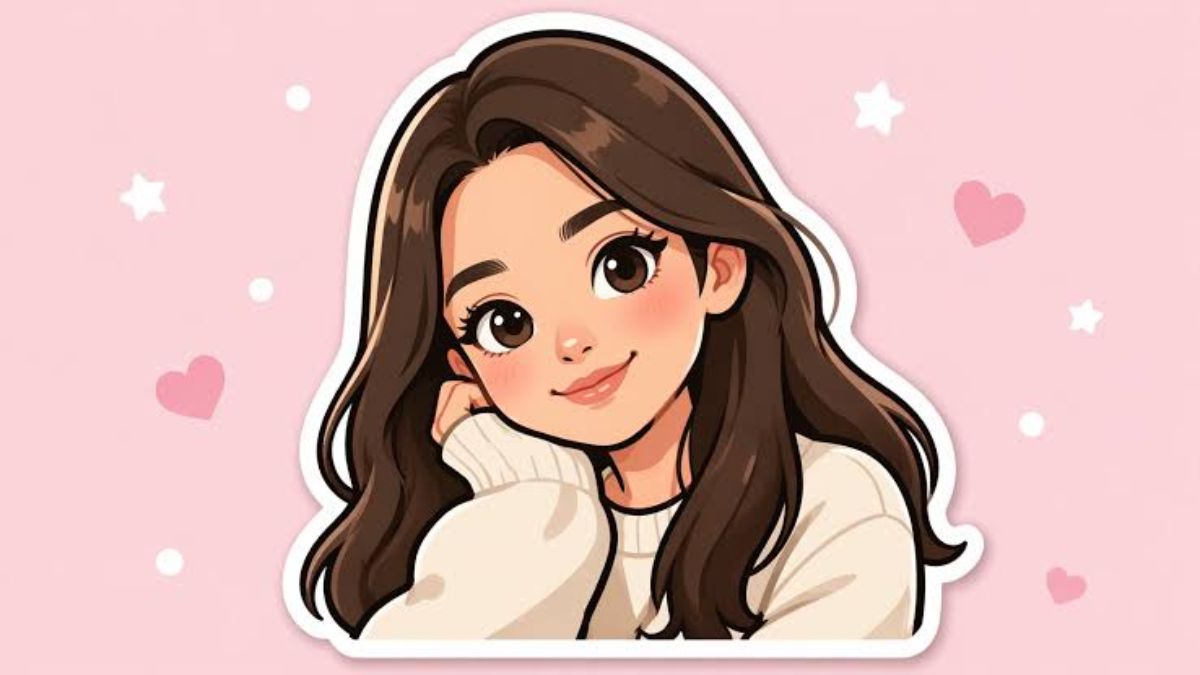
A pack of eight to twelve stickers feels complete. Keep the same character design, outline thickness, and color palette across all of them, and vary only the pose and expression. Reuse your prompt template, swapping the emotion each time. Name the files clearly so they’re easy to sort. A pack that is consistent is more professional looking. Test the pack out on some friends and see which one they would use the most. It normally gives you insight into which ones you should make next.
Make your own chat language
Stickers give a conversation personality, and Dreamina with Seedream 5.0 Pro makes it easy to design your own. Pick one character, write a clear prompt, and make your first reaction. Before long, your friends will be fluent in your sticker language.