


Brave has introduced a new Email Aliases feature with version 1.94 of its desktop browser, which is aimed at reducing spam and protecting users from cross-site tracking based on email-address matching.
Read more about this latest update below.
Brave Email Aliases – Details
Those who are on Brave’s desktop version 1.94 can now generate unique email aliases while signing up for different websites and online services. Messages received through these aliases will be forwarded to the user’s primary email inbox.
By using a different alias for every website, users can prevent their primary email address from being used as a common identifier for tracking their activities across the web. Moreover, if a particular alias starts receiving spam, it can be deactivated and replaced with a new one.
Brave points out that the Email Aliases feature extends its privacy protection beyond browser-level tracking prevention, as it also limits server-side matching based on users’ email addresses.
As part of the initial release, users will receive five email aliases for free. The company is also planning to introduce the feature on mobile devices, while a paid Premium version will be offered in the future.
Separate Brave Account Required
To use Email Aliases, users will have to create a separate Brave Account whcih should be different from the Brave Premium account used for managing services such as Brave VPN.
Similar to all account signups, users will be required to enter and verify their primary email address and create a password. Brave Accounts uses the standardised OPAQUE cryptographic protocol, and the account password is never sent to Brave’s servers.
Users can create an account by following the steps mentioned below:
- Open brave://settings/email-aliases.
- Select Log in or create a Brave account.
- Enter an email address and a strong password.
- Complete the email verification process.
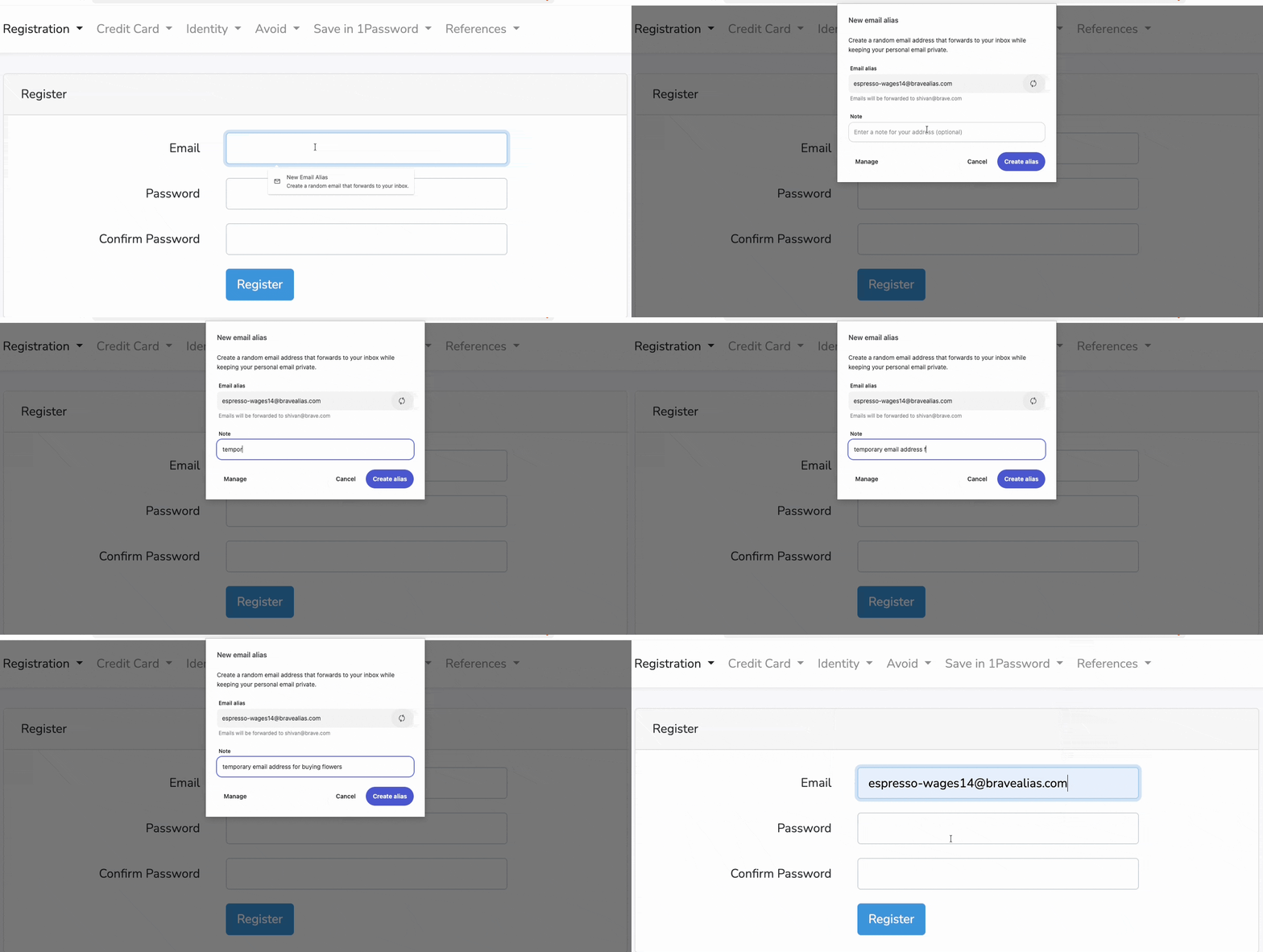
After signing in, users can click on an email field while visiting a website to generate a new alias. If the automatic New Email Alias prompt does not appear, users can right-click on the email field and manually select the option.
The generated aliases can be managed by navigating to Settings > Autofill & Passwords > Email Aliases. Users can also access the management page directly through brave://settings/email-aliases.
Privacy and Data Protection
Brave adds that it securely stores the primary account email address and generats aliases, with the data being encrypted at rest.
Emails passing through the service are processed only for standard spam and virus filtering and are deleted from Brave’s servers within seconds once they are delivered to the user’s primary inbox.
Notes added to individual aliases are stored locally on the user’s device and if Brave Sync is enabled, these notes are end-to-end encrypted between devices connected to the same Sync chain, meaning that Brave cannot read the synced alias notes.
During the initial rollout, some forwarded emails may incorrectly appear in the spam folder and therefore Brave recommends to Users to mark such messages as Not spam, which should help improve future email delivery.
Stay tuned for more updates.