
Google has now ended support for backing up photos and videos to Google Photos through its Drive for desktop application. The change came into effect starting August 10th 2026, which was yesterday, and users will now have to make use of the Google Photos interface to continue backing up folders from their computers.
Read more about it below.
Google Drive for Desktop Ends Support for Google Photos Backup
According to the updated support pages hosted by Google, Drive for Desktop no longer supports backing up photos and videos directly to Google Photos starting August 10th 2026.
To continue backing up folders containing photos and videos, users will now need to make use of the “Back up folders” option available through Google Photos and reselect the folders they wish to back up. However, photos and videos that were previously backed up through Drive for desktop will remain available in Google Photos.
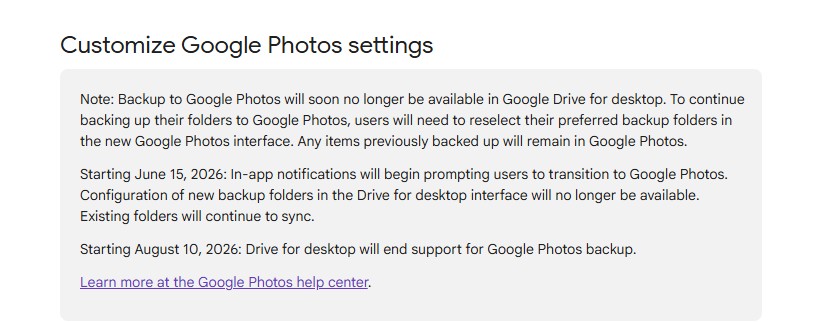
This transition had actually started a few months back. Starting June 15th 2026, Google began showing in-app notifications asking Drive for desktop users to move their Google Photos backup setup. From the same date, users were also no longer able to configure new folders for Google Photos backup through the Drive for desktop interface, although already configured folders continued syncing until August 10th.
Now, with August 10th already passed, support for the Google Photos backup functionality through Drive for desktop has completely ended. Users who still want their desktop folders to automatically back up photos and videos will therefore have to set them up again through Google Photos.
Here Is How You Can Set Up Folder Backup Through Google Photos
First, visit Google Photos on your desktop and sign in using your Google account.
Once signed in, you will see a “+” icon. Click on it and select the “Back up folders” option.
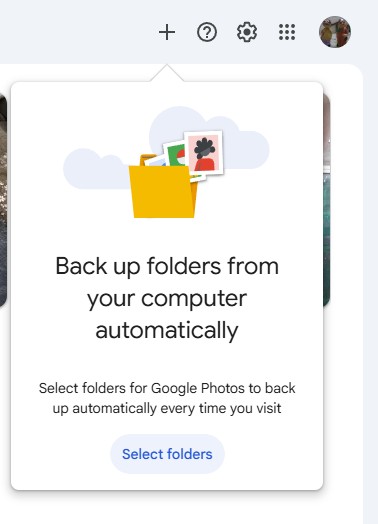
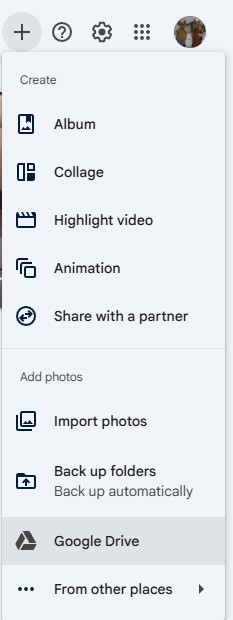
Back Up Folders from your Computer – Google Photos
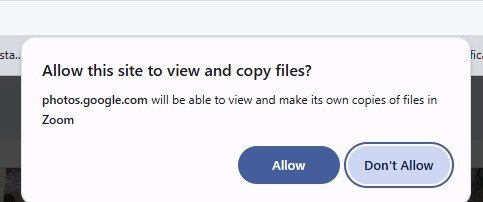
A new window will then appear, from where you can select the folder that you want to back up to Google Photos. After selecting the folder, another pop-up will appear asking you to allow or disallow access.
Simply allow the required permissions and follow the on-screen instructions to complete the setup. Once done, photos and videos from the selected folder will start backing up to Google Photos.
Stay tuned for more updates!