

Yesterday, Canva launched two new AI Controls that let you switch generative AI features on or off and see less AI-generated content in the Canva library.
Canva’s two new AI Controls
Generative AI Control
A new switch to enable or disable generative AI features across Canva. When it’s disabled, those features are hidden across Canva and can be enabled again at any time. You can find this under Profile> Settings> Permissions.
AI-Generated Content Control
A new option to limit AI-generated content while browsing the Canva library, without changing any of your existing designs, can be found under Profile> Your account> AI Personalisation.
The new controls join the AI permissions already available to admins on Canva Business, Enterprise, Teams and Education, which let organisations decide how their teams use AI.
Availability
Both of these features are available to everyone on Canva Free and Canva Pro at no extra cost.
With these new AI controls, Canva also has assistive editing tools that make everyday tasks faster without generating anything new.
Assistive editing tools
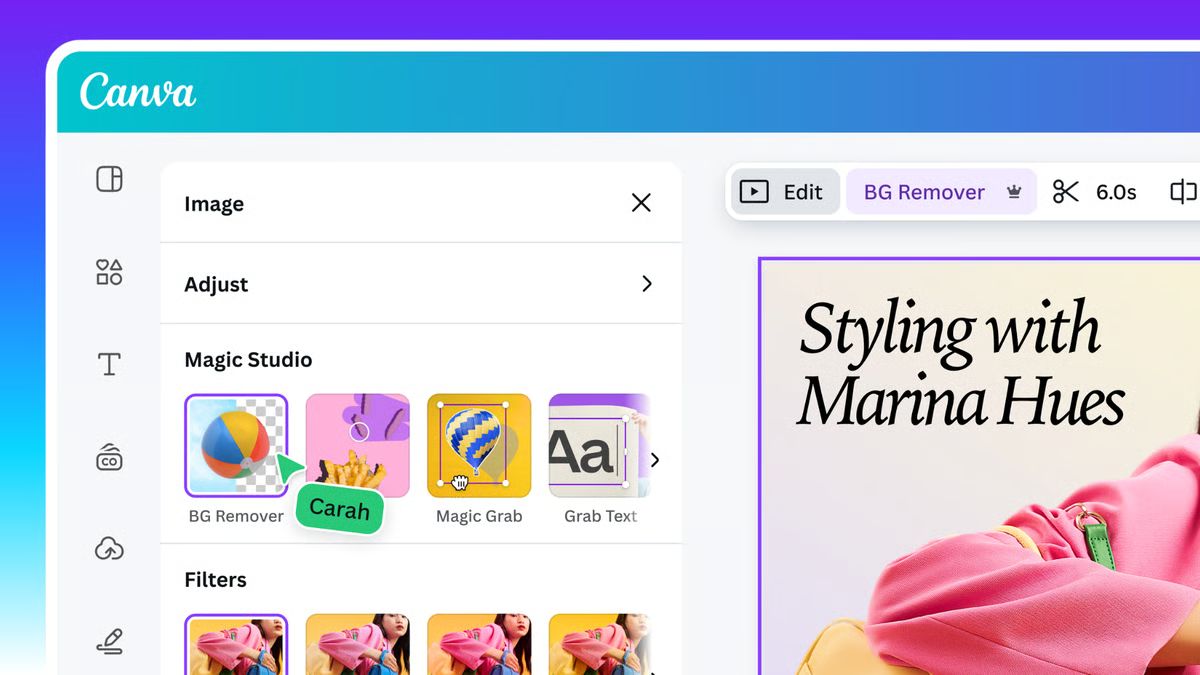
The assistive editing tools include Background Remover and Magic Grab. These tools will continue to be available even when generative AI is switched off, so you can still enjoy the benefits of easy edits while creating everything yourself.
Since these tools only edit existing content rather than generate anything new, using them won’t trigger an AI-generated content label.
Apart from this, a small portion of Canva’s library includes AI-generated content, such as backgrounds and illustrated graphics. As part of broader industry efforts to improve transparency around AI-generated content, these assets are identified as AI-generated in their metadata, allowing that information to carry through to social platforms and other services that recognise and label this.