
How to Easily Manage Your Airtel Broadband: Change Passwords, Activate Guest Network, and More

For those who use Airtel broadband and are unsure how to change settings, update the password, activate the guest network, and more, this article will guide you through the process.
Here is more to it.
Manage your Airtel Wi-Fi settings via the Airtel Thanks app
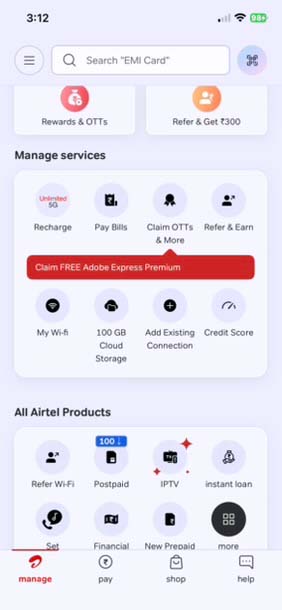
First of all, you will have to download the Airtel Thanks app from the Google Play Store or Apple’s App Store. After the installation, you will have to either sign up or log in with your connection details. Once logged in, at the bottom of the app, you will see the manage option. After clicking on it, scroll down, and there you will find a Mywifi option, and that is where you will find all the options.
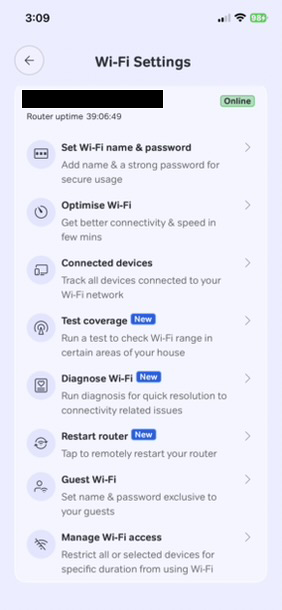
Now, to change the password, select the “Set Wi-Fi name & password” option; a new window will open. Simply add the new Wi-Fi name and change the password to a new one. After this, you will have to reconnect your devices.
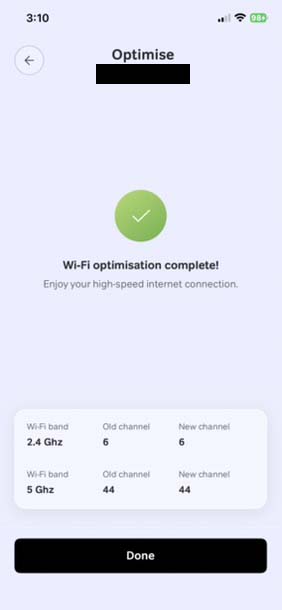
The next “Optimise Wi-Fi” option, simply put, optimises your network. Like, one day, the network wasn’t working properly, and the speed I was getting was around 22 MBPS, while I had a plan of 100 MBPS. So, after using this option, my internet speed again came back to 100 mbps.
Through the connected devices, you can check all the devices that are currently connected to your wifi network.
The test coverage feature is just to tell you whether you have a good or bad signal in parts of your house. And when I used it, it showed a poor network in my bedroom, though the network speed was fine and all.
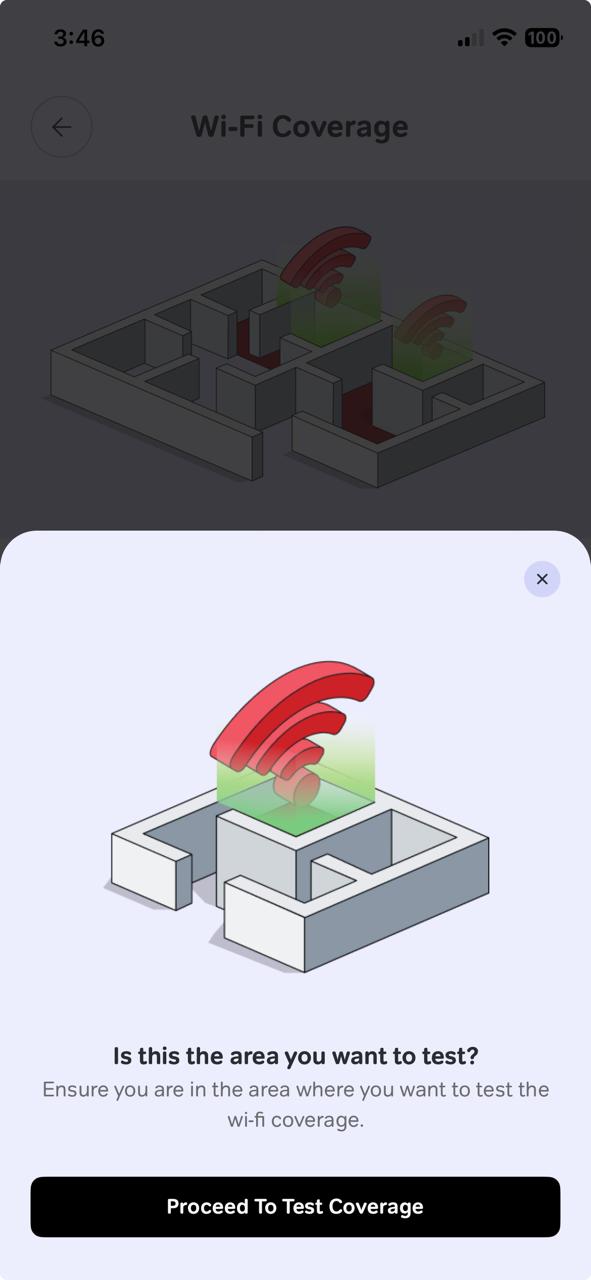
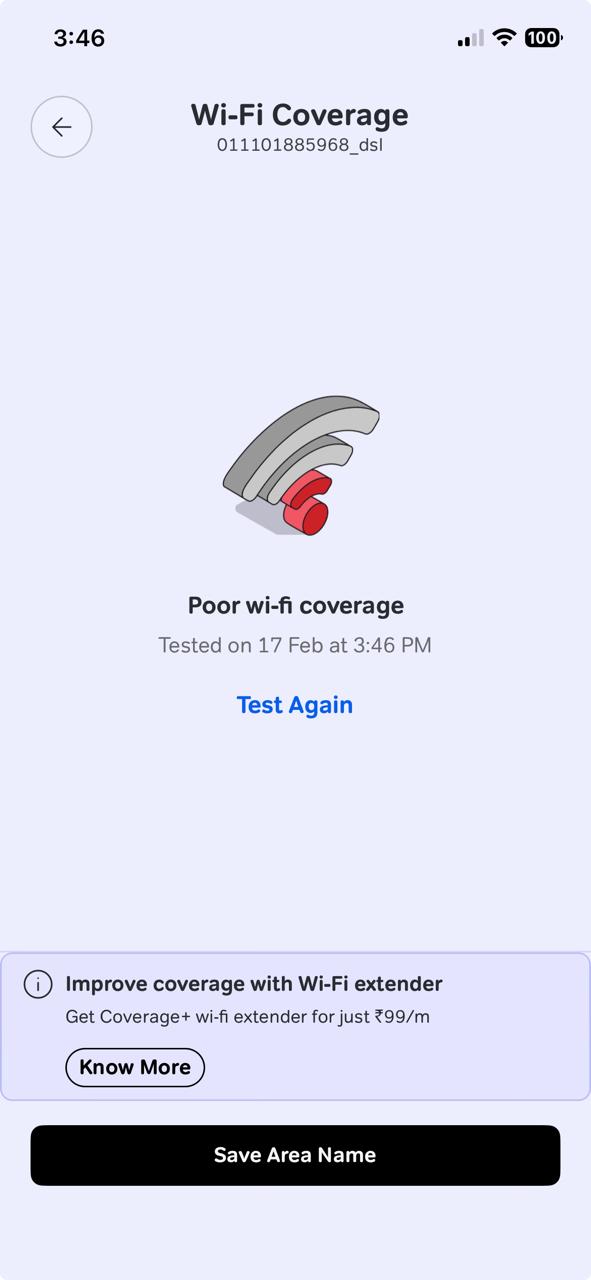
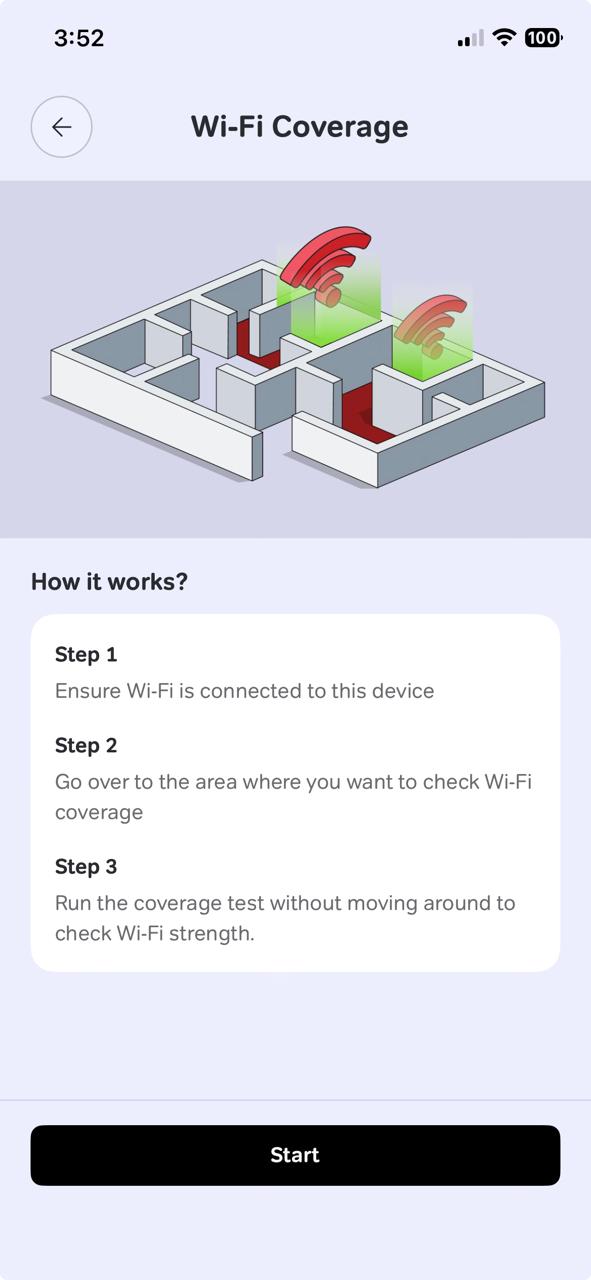
While the Diagnose your wifi option simply opens up the chat window and asks you a couple of questions, it helps you troubleshoot the issue.
Through the ‘restart your router’ option, as the word simply means, you can reboot your router with it.
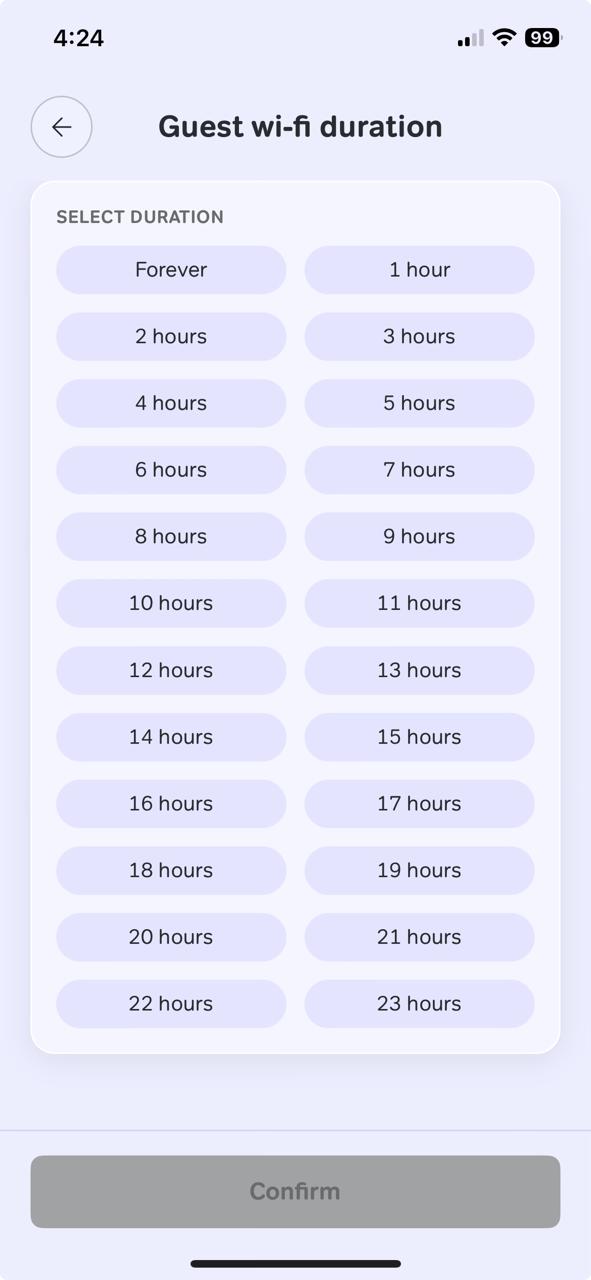
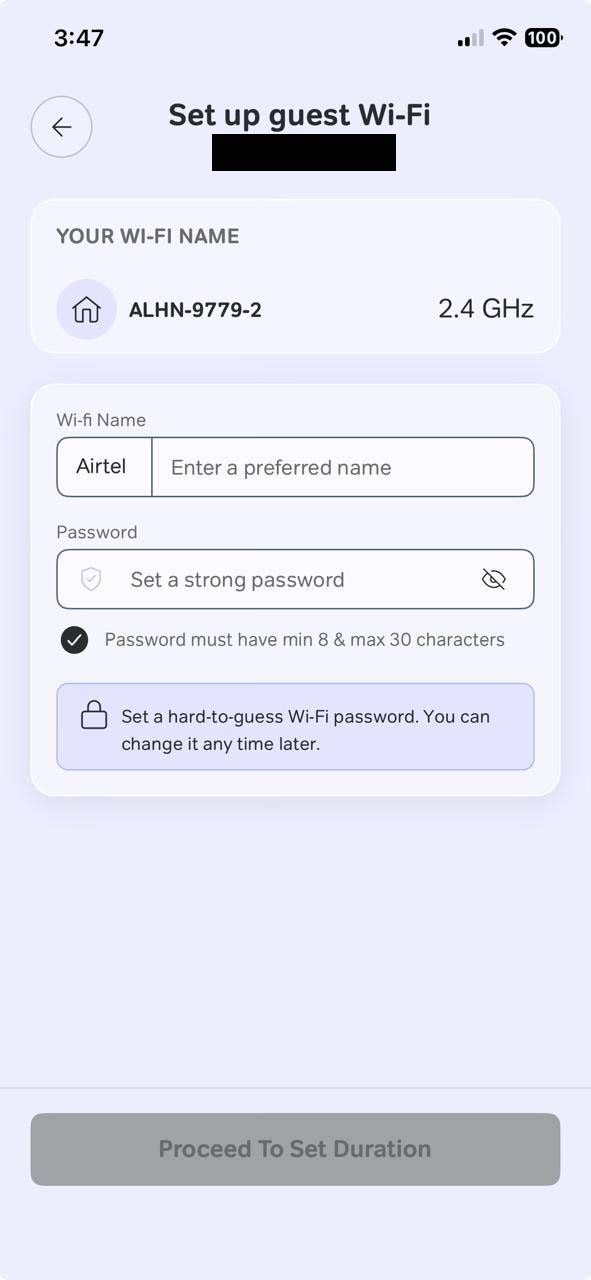
In some cases, where we don’t feel comfortable sharing our original wifi details, this guest wifi option is a good option. Through this, you can create a Wi-Fi name and a password that you can share. Along with this, you can also set the duration from forever to 23 hours.
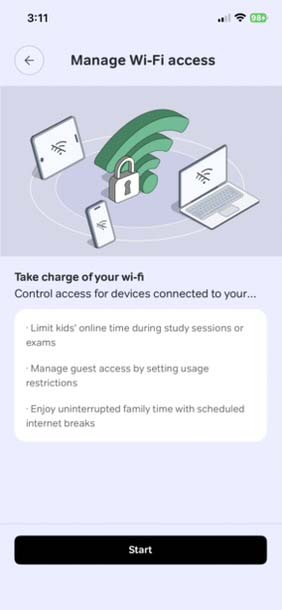
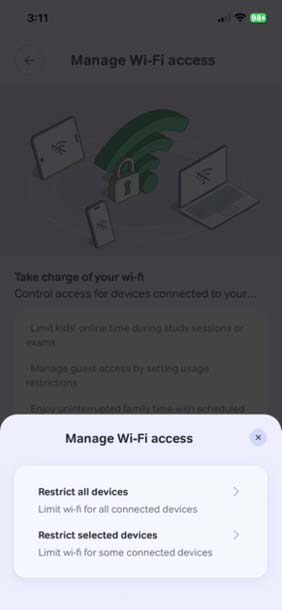
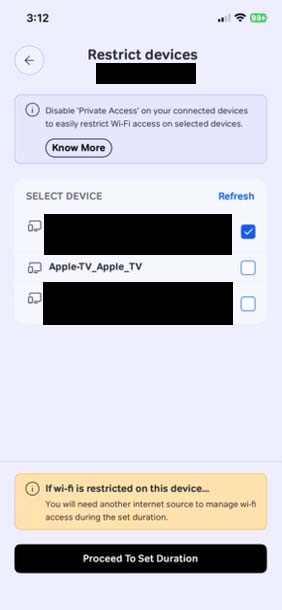
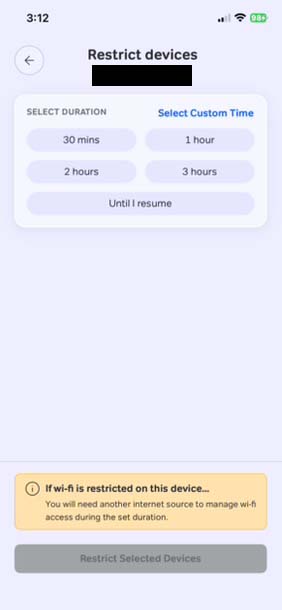
This last option is something that I like, the reason being that via this, you can restrict a few or all the devices connected to the network, or even select the duration for which they can’t connect to the wifi network.