


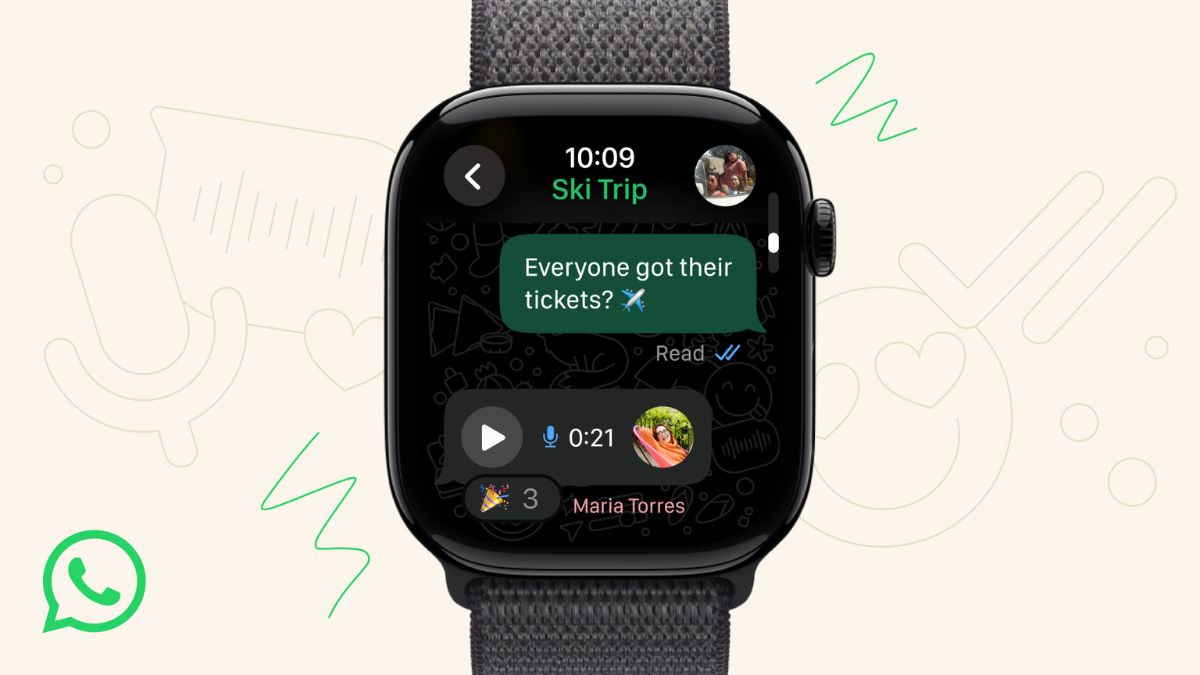
Last month, WhatsApp officially introduced its Apple Watch app that allowed users to access core messaging features directly on their wrist. In this article, we will share how you can access WhatsApp on the Apple Watch, enable WhatsApp notifications and more.
How to get started?
If automatic downloads are turned on, WhatsApp for Apple Watch will automatically appear on your Apple Watch, or you can install it from the Watch app. To use WhatsApp on your Apple Watch, you will need iOS 9.1 or newer, WatchOS 10 or above, Apple Watch Series 4 or above.
How to enable WhatsApp notifications on Apple Watch?
- Enable Bluetooth on your iPhone
- Ensure your Apple Watch is connected to Bluetooth, your iPhone is turned on, and is in range
- Enable WhatsApp notifications in iPhone settings
- Allow notifications on your iPhone
- Turn on Allow Notifications and enable all alerts
- Go to your Apple Watch app
- Go to Notifications and scroll to Mirror iPhone alerts from
- Turn on WhatsApp
How to read and reply to notifications?
- Tap Reply to reply to a notification. There are several ways to reply- tap suggestions, write on the watch, or tap the microphone to dictate a reply
- Alternatively, tap Dismiss to mark the notification as read and remove it from your screen
With WhatsApp being launched for Apple Watch, users can access various features like reading notifications, replying to messages or sending reactions, sending and receiving messages, sending and listening to voice messages, seeing photos and stickers, receiving call notifications and declining calls.
