


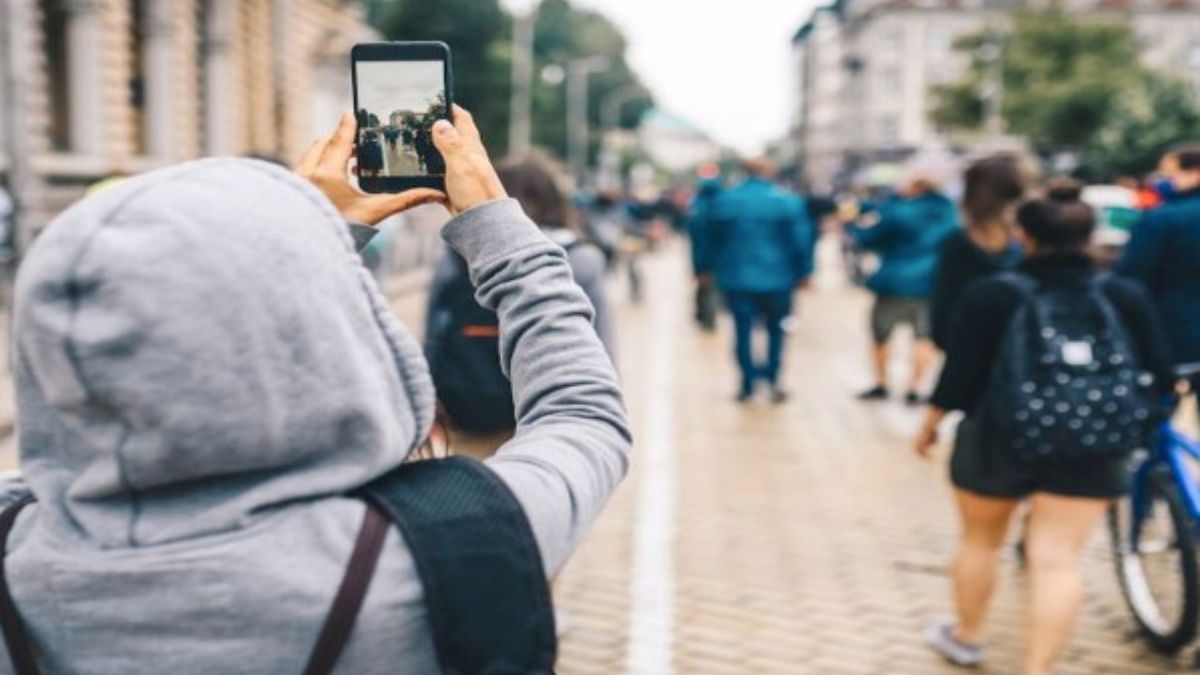
You’re filming in a busy street or park, and everything looks perfect. Until someone walks into frame or a bright sign grabs all the attention. The public filming is always full of surprises, and re-shooting is not always an option.
The good news? You don’t have to give up on great footage. Modern creators turn to smart editing tools like Wondershare Filmora. That removes unwanted objects from the video without sacrificing quality.
In this guide, we’ll show you how to professionally polish public footage using Wondershare Filmora’s AI video object remover. Whether it’s a stray pedestrian or a distracting sign, you can now remove unwanted objects from video effortlessly.
Part 1: The Challenges of Editing Video Shot in Crowded Public Spaces
Filming in public places adds realism and energy to your video. But it also brings editing challenges that are difficult to avoid. Unlike controlled indoor setups, public spaces’ backgrounds keep changing from one frame to the next. And making post-production more complex.
Most common challenges creators face:
- Constant Movement: People, pets, and even vehicles are always on the move. Which makes clean edits harder to pull off.
- Busy Background: Street signs, bins, and cables can easily steal attention from your main subject.
- Changing Lighting: Natural light doesn’t stay consistent. Passing clouds or reflections can quickly complicate the editing process.
- Quality Loss with Basic Fixes: Cropping can remove important parts of the scene. Manual masking may leave flickers or awkward edges.
Because of these issues, traditional editing methods don’t always deliver the results creators want. This is why many creators now rely on AI-assisted object removal tools. It can analyze motion and clean up public footage while preserving video quality and visual flow.
Part 2: 3 Pro Methods to Remove Objects from Video with Filmora
Not all object removal techniques work the same way. Depending on your footage, some methods can do the job. While others may slow you down or affect video quality. Let’s learn the most common approaches and when they make sense.
-
Manual Editing
This is the traditional, hands-on method. Editors manually mask unwanted objects and fine-tune each frame to keep the video looking consistent.

Pros:
- Offers full creative control
- Works well for very short or simple clips
Limitations:
- Extremely time-consuming
- Hard to manage when backgrounds are moving
- Easy to miss frames, which can cause flicker or distortion
For crowded public scenes, manual editing often feels like you’re fighting the footage instead of fixing it.
-
Cropping and Masking
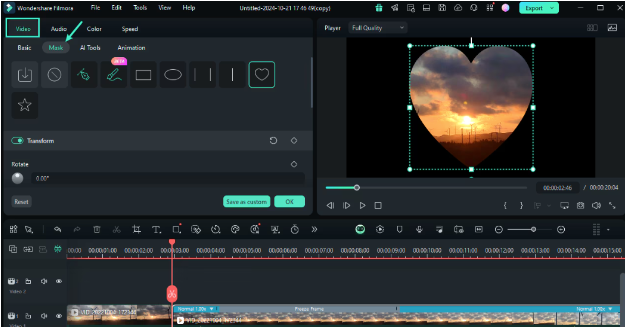
Cropping trims the frame to remove distractions. On the other hand, masking hides unwanted objects behind shapes or overlays.
Pros:
- The unwanted object is near the edge of the frame
- The shot still looks balanced after cropping
Limitations:
- Removes important background details
- Makes videos feel tight or boxed in
- Can disrupt the cinematic look
This method works as a quick fix. But it’s rarely ideal for wide shots, travel videos, or dynamic public scenes.
-
Filmora’s AI Video Object Remover (Best Option)
Filmora’s built-in ai video object remover automatically detects unwanted elements and intelligently rebuilds the background. But keeping motion smooth and natural. Instead of simply hiding objects, the AI analyzes nearby frames and fills in missing details.
Here’s a simple workflow in Filmora:
Step 1: Import Your Video and Select AI Object Remover
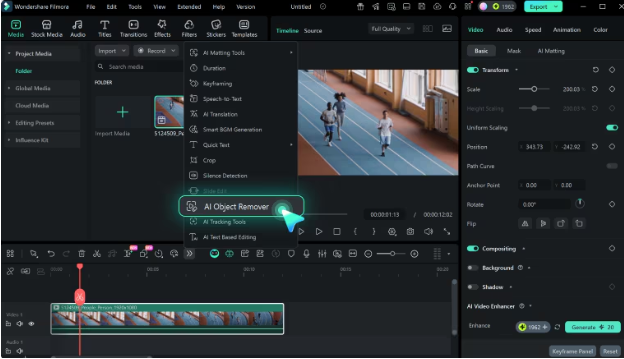
Drop your video into Filmora’s timeline, and click to select it. Turn on AI Object Remover from the toolbar. In just one click, you’re ready to clean up distractions and refine your shot.
Step 2: Select the unwanted objects
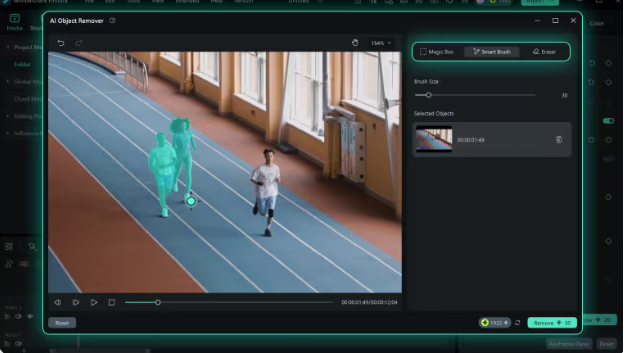
Pick the Magic Box or Smart Brush and paint over unwanted objects. Fine-tune with the eraser, then click Remove to let AI do the rest.
Step 3: Export the video
Once everything looks clean, export your video. The AI preserves textures, sharpness, and resolution. So the result looks naturally flawless.
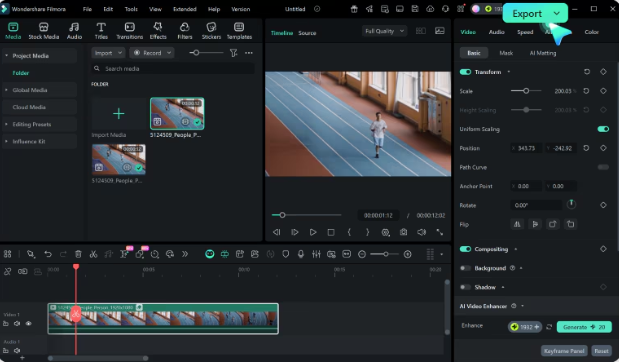
If you’re looking for a reliable way to remove unwanted objects from video without sacrificing quality. You should try Wondershare Filmora. This AI-powered approach saves time and delivers professional results with far less effort.
Part 3: 5 Pro Tips for Clean Object Removal in Crowded Public Videos
Just smart shooting and editing habits can make even the best AI tools work better. To make your results cleaner, here are some handy tips:
- Plan with movement in mind: When filming, observe how people and vehicles move through the space. A few seconds of patience can reduce heavy editing later.
- Keep your subject away from crowded zones: Position your main subject slightly off high-traffic paths. This gives the AI more consistent background data to work with.
- Maintain consistent lighting: Stable lighting helps AI tools reconstruct backgrounds more accurately. Avoid sudden exposure changes when possible.
- Use higher-resolution footage: More visual data means better reconstruction. Shooting in 4K improves object removal results.
- Set realistic expectations: AI works wonders, but extremely complex scenes like dense crowds crossing still need minor touch-ups.
Combine these best practices with Filmora’s AI video object remover. You’ll get smoother edits that look natural without overcomplicating your workflow.
Conclusion
Public spaces bring energy and authenticity to your videos. But distractions are often part of the deal. Rather than throwing away great footage, creators of today use intelligent tools to fix their work in a few clicks. Wondershare Filmora is the software that helps you take out the parts that you don’t want to keep the motion fluid, and it keeps the details. It doesn’t matter if you are making travel vlogs or lifestyle videos. The AI-powered functionalities of Filmora are at your service to make the raw public shots look like professional ones. Ready to polish your videos without the extra effort? Give Wondershare Filmora a try.

