

Google Pay’s New ‘Pocket Money’ Feature Lets Parents Control Kids’ UPI Spending Securely

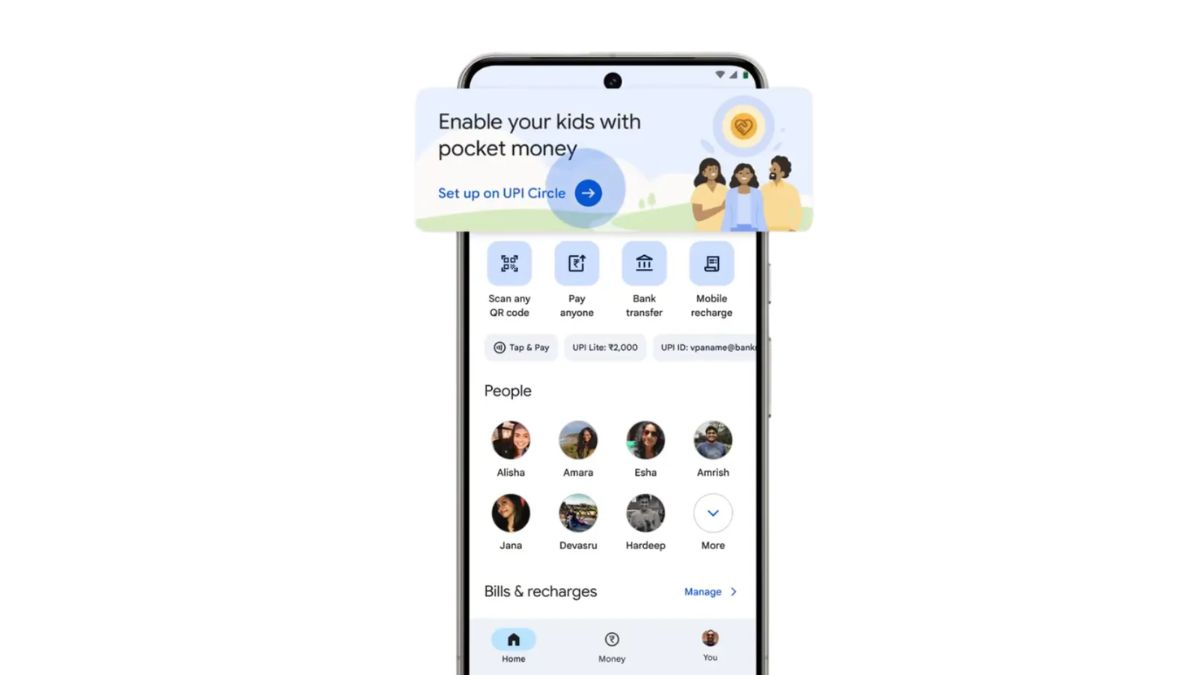
Google has rolled out yet another new feature in the Google Pay app called Pocket Money, built on top of the existing UPI Circle functionality. This feature allows a primary UPI user, who is the account holder, to give trusted individuals, such as family members or friends, limited access to make payments from their account.
With the Pocket Money feature, parents can now allow their children to use digital payments in a controlled and secure way. There are two options available. You can either set a monthly spending limit of up to ₹15,000, or choose to approve every transaction initiated by your child. Personally, the second option feels like the better choice, as every payment goes through you before it is approved.
If you’re not able to see the UPI Circle banner in your Google Pay app, simply open the app and tap on your profile picture. Scroll down and you’ll find the UPI Circle option. Tap on it and follow the on-screen instructions. I’ve also added the step-by-step instructions below to help you set it up easily.
Set up Pocket Money with UPI Circle on Google Pay
Important things to know
- To be a Primary user, you must have:
- An active bank account linked to Google Pay.
- You can add up to 5 Secondary users.
- A Secondary user must:
- Be saved in your phone contacts.
- Have the Google Pay app installed and registered with their phone number.
- Have a valid UPI ID.
How to set up pocket money
- Open the Google Pay app on your phone.
- Go to Profile → UPI Circle → Set up pocket money on UPI Circle.
- Search for the Secondary user by name or phone number.
- Select the contact.
- Scan the Secondary user’s UPI Circle QR code.
- Choose your approval settings:
Option 1: Approve every payment (Partial delegation)
- Tap Continue.
- Tap Yes, send invite.
Option 2: Set a monthly limit (Full delegation)
- Tap Continue.
- Set a monthly spending limit.
- Add additional details:
- Select the Secondary user’s relationship with you.
- Enter the Secondary user’s government ID number.
- Tap Continue.
- Choose the bank account to be used.
- Tap Send invite.
- Enter your UPI PIN to confirm.
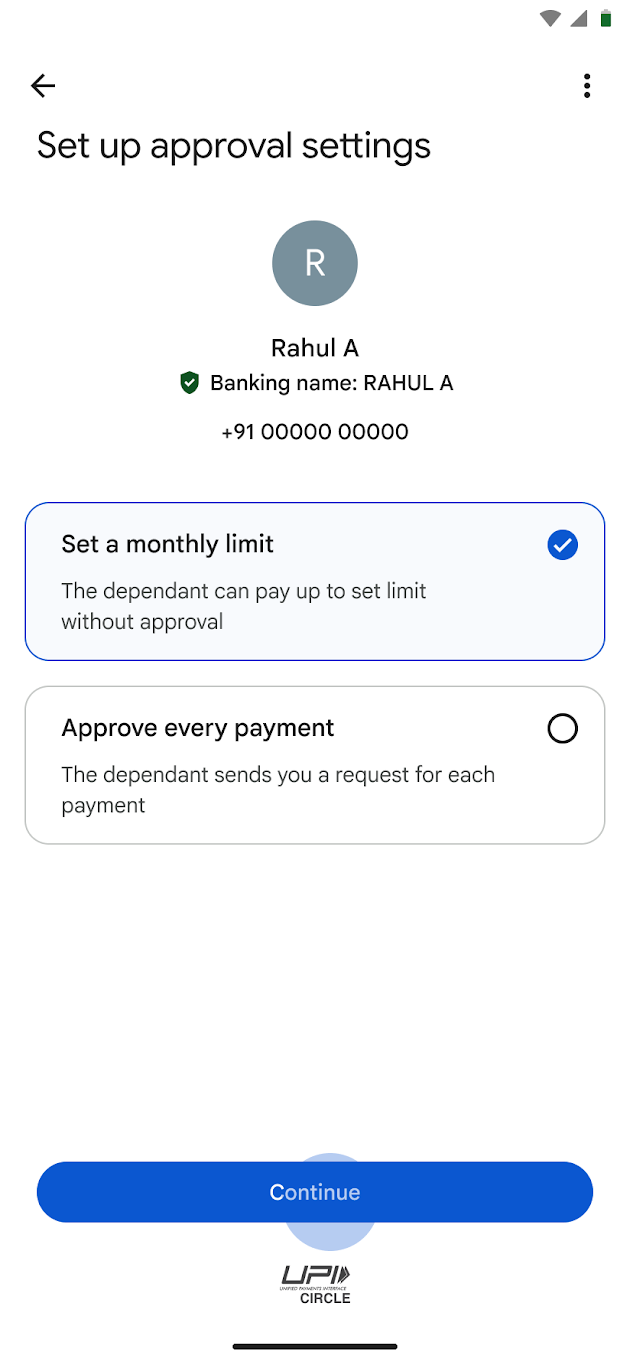
Image Source : Google
Verify a Secondary user
After setting a monthly limit, verification is required before the Secondary user can make payments.
You’ll need to:
- Confirm your relationship with the Secondary user.
- Select a government ID type.
- Enter the ID number.
Note: This information is required by banks under the Master Direction – Know Your Customer (KYC) Direction, 2016.
It helps record the Secondary user’s name, mobile number, and ID details.
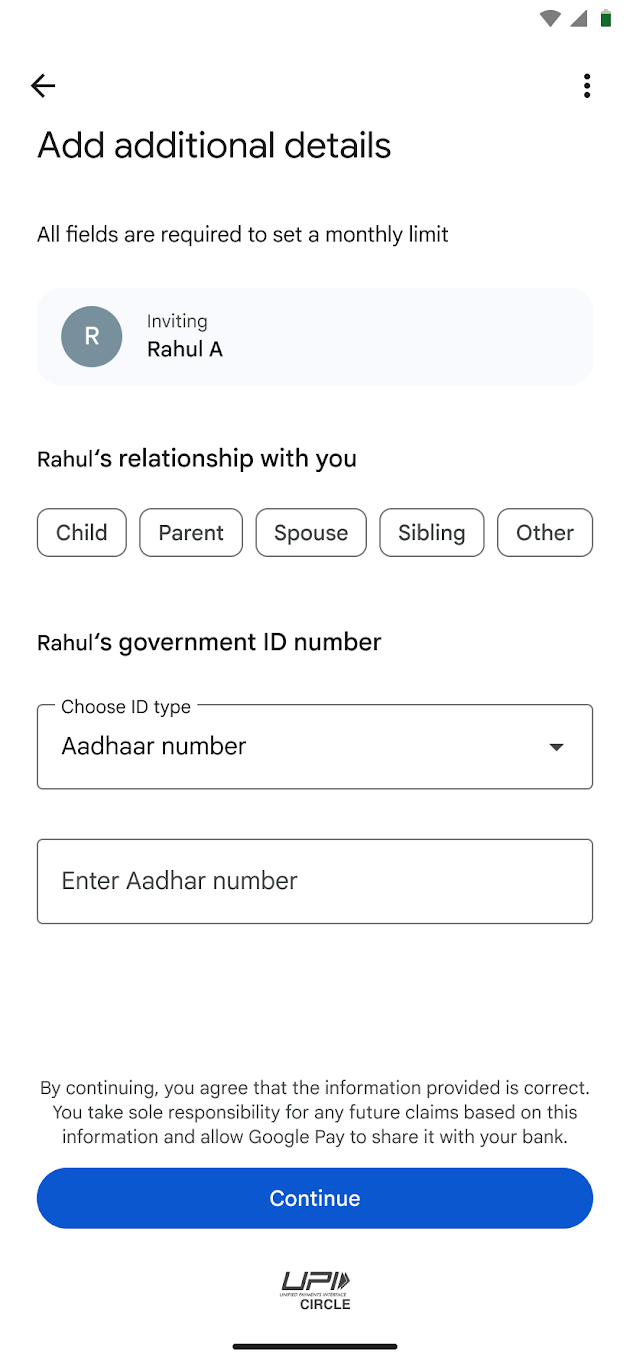
Image Source : Google
If the Secondary user missed the invite notification
- Open Google Pay.
- Go to Profile → UPI Circle → Paying for you.
- Tap Accept request.
Tip: The invite is valid for 30 minutes. If it expires, the Primary user must send a new invite.
Pocket Money on Google Pay helps teenagers and young adults navigate digital payments with confidence 💚 @NPCI_NPCI
Read more on how we’re launching the first use-case for UPI Circle with Pocket Money 🔗 https://t.co/pIWBsgiw4G pic.twitter.com/iw53fB4Ga2
— Google India (@GoogleIndia) December 17, 2025
