


Apple iPhone users can now access multiple email accounts in the Mail app. This article will be helping you on how to do it.
Read more about it below
Mail App – Now Add Multiple Email Accounts
To add more email accounts in the Mail app on your iPhone, users will have to open Settings first and then navigate to the bottom to find ‘Apps’. Select it and in the next window, search and find the Mail app. Tap on it and press the ‘Mail Accounts’ option. There, users will be able to see the ‘Add Account’ option. By clicking it, they will be brought to the page where the email address can be added, type it in, and press ‘Next’. In the pop-up message, users will be asked to enter the password and for this, select ‘Open Browser’. After signing in, the email account can be accessed on your iPhone, along with the iCloud email service.
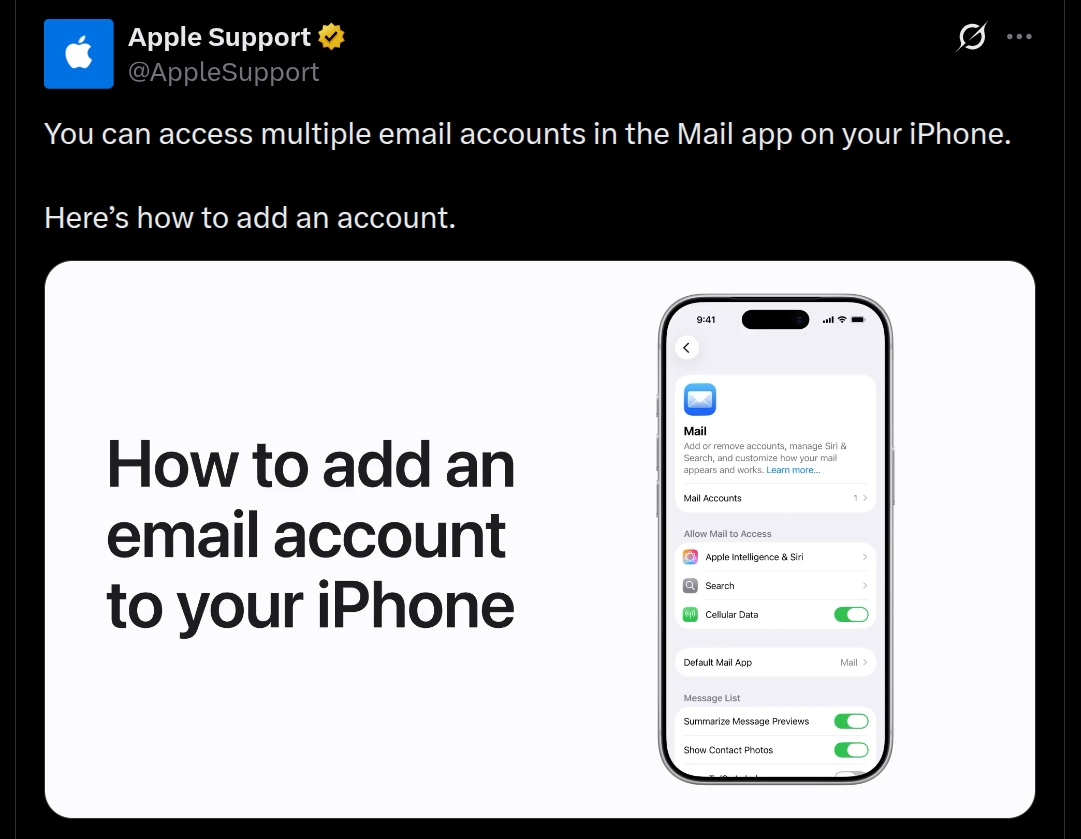
Watch the video given below for a better understanding on how to do it.
Looking into a few other related updates, the Hypertension notification feature was made available in the Indian market for select Apple watches early this month in December 2025. Also, both Apple and Google had collaborated recently to bring the seamless iOS and Android switching capability, however Apple had also instructed its iPhone users not to make use of Google Chrome and other Google services due to security concerns. The iOS 26.2 and macOS Tahoe 26.2 updates were also released last week, and these brought new features and bug fixes.
Stay tuned for more such updates.
