

ChatGPT app introduced for Slack to ask questions, brainstorm ideas, draft content and more

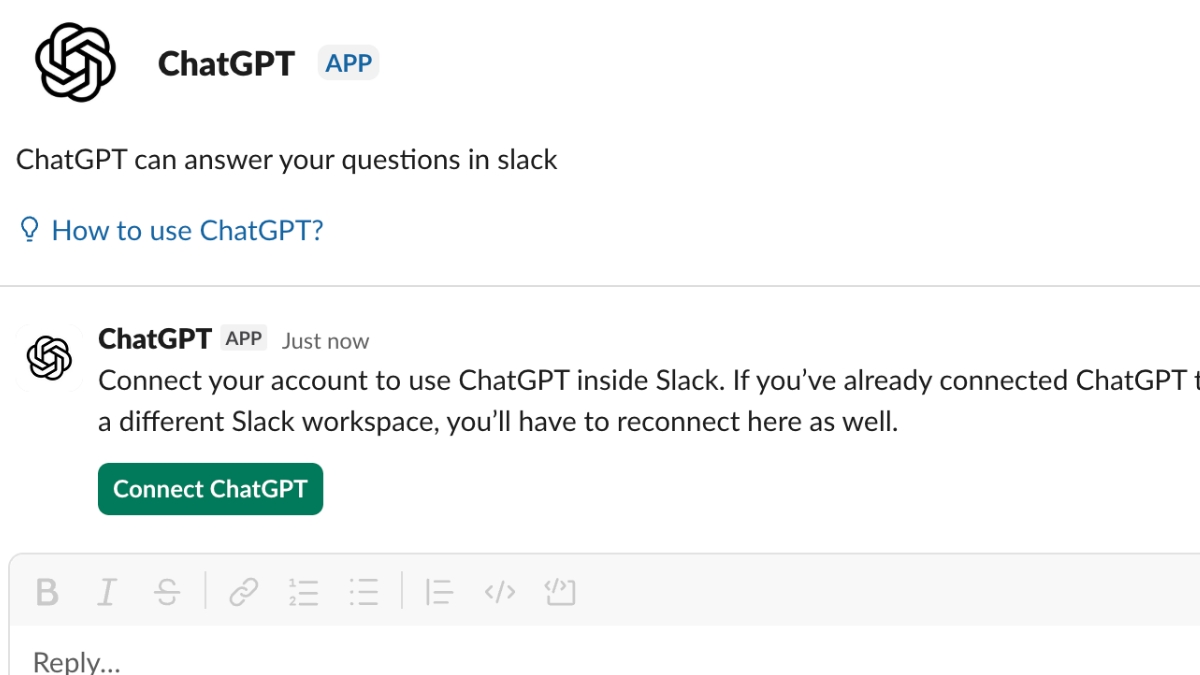
To simplify the work of Slack users and save them time from switching between different apps, OpenAI has officially introduced the ChatGPT app for Slack that brings the power of ChatGPT directly into Slack.
🚀 Big news: The ChatGPT app for Slack is here.
With Slack’s new Real-Time Search API, the ChatGPT app for Slack brings the power of ChatGPT into a dedicated Slack sidebar – a space for you to ask questions, brainstorm ideas, draft content and solve problems. This is just the… pic.twitter.com/A4ukeQX4X1
— Slack (@SlackHQ) October 13, 2025
Once you connect your ChatGPT account to Slack, you can chat one-on-one with ChatGPT in a dedicated sidebar- a space for asking questions, brainstorming ideas, drafting content, and solving problems faster. Once enabled in ChatGPT, conversations started in Slack also appear in your ChatGPT sidebar, so you can easily pick up where you left off.
What can you do?
- Write clear posts, updates, and replies: Draft polished responses in seconds without leaving Slack.
- Search Slack to find messages and files: Search across channels and messages that you already have access to. The app supports both keyword and semantic search, so you can quickly find messages and files by exact term or by meaning. Semantic search is available for Slack customers with AI enabled on a Business+ or Enterprise+ plan.
- Connect Slack in ChatGPT: You can also search Slack messages from inside your ChatGPT account. Your chats will appear within your ChatGPT sidebar, so it’s easy to pick up where you left off.
- Summarize long conversations in other channels into action items: Turn lengthy discussions into clear, scannable notes with owners and next steps.
It is revealed that users can also connect Slack as a data source in ChatGPT without installing the ChatGPT app for Slack.
Pre-requisites
- Your Slack workspace must allow installation of the ChatGPT app for Slack
- You are using a paid Slack plan
- You have a Plus, Pro, Business, or Enterprise/Edu ChatGPT account. (Enterprise admins must additionally enable the ChatGPT connector for Slack from Admin connectors settings, including any required RBAC.)
The app is available globally, but it won’t for Plus and Pro users in the European Economic Area, Great Britain, and Switzerland due to geo restrictions on the ChatGPT connector for Slack.
Installation
Check if the ChatGPT app for Slack is already installed in your workspace by accessing Apps in Slack. If not, start installing the app for Slack by clicking this link. You will be required to sign in to your ChatGPT account, and then you will be presented with the Add ChatGPT to Slack modal. Review the information and click Continue to Slack to proceed.
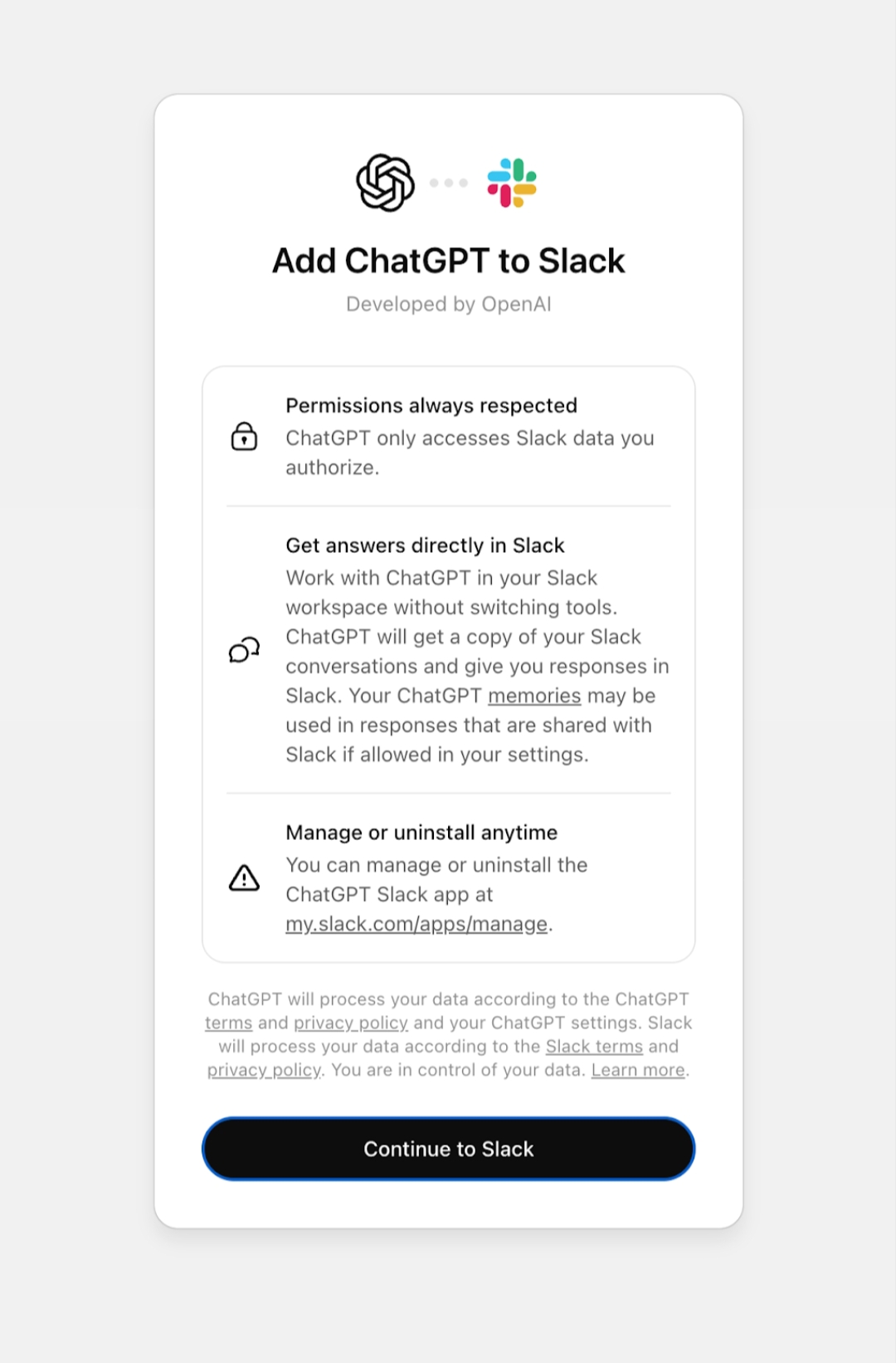
You can then grant the app, required permissions. Also, before using the app, you will need to connect it to your ChatGPT account. After the ChatGPT connector for Slack is enabled, you can start using ChatGPT within Slack in a dedicated sidebar.
You can also disconnect your ChatGPT account from Slack anytime in your ChatGPT account.
Privacy and Security
Only the messages and files you already have access to in Slack are searchable. Chats from the ChatGPT app for Slack do not write memories if you have memories enabled in your ChatGPT settings. While chats you originate in the app for Slack cannot be viewed, modified, or deleted by other users on Slack.
Enterprise admins may use the compliance API to access user conversations synced to your ChatGPT account from the ChatGPT app for Slack.
Limitations
- Heavy usage may exhaust your per-user Slack API limits quota even if workspace-wide limits are not reached.
- The ChatGPT app for Slack cannot look up channels by native Slack channel tags – use plain text channel names, instead.
- Enterprise/Edu admins must enable the ChatGPT connector for Slack and enable access for users or groups via role-based access controls (RBAC) in their ChatGPT workspace admin settings.
