

Gaming Copilot (Beta) started rolling out on PC Game Bar; Will be released for Xbox mobile app next month

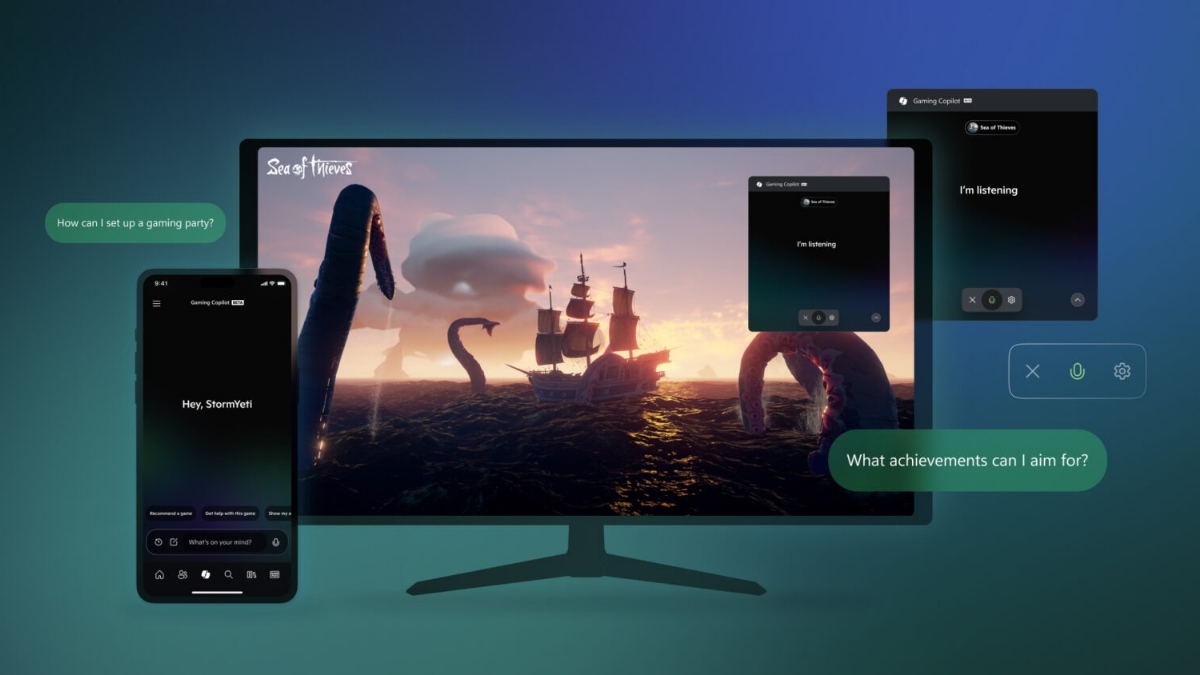
Yesterday, Xbox announced that Gaming Copilot (Beta) has begun rolling out to players aged 18 and older on PC Game Bar, and the feature will gradually roll out over the next few weeks. PC players will see Gaming Copilot integrated directly into their Game Bar experience.
Gaming Copilot (Beta) is starting to roll out on PC Game Bar today and the Xbox mobile app next month
Your personal AI gaming sidekick awaits: https://t.co/545XnsYgFP pic.twitter.com/NT7AQ2sGqS
— Xbox (@Xbox) September 18, 2025
Gaming Copliot (Beta) will be released for the Xbox mobile app on Apple and Android next month (with regional support everywhere except China), where players will be able to access this personalized companion via a second screen without distracting from their gameplay.
Based on the feedback from players on mobile and members of the Xbox Insiders program, the company has introduced new features to Gaming Copilot- deeper in-game assistance, improved Voice Mode, and a better understanding of what’s happening on your game screen. In the future, the company will come up with new features and improvements like deeper insights and coaching.
Tips and suggestions for first-time players
Voice Mode for seamless experience
Use Voice Mode on either PC or mobile to talk to Copilot directly, get help about the game you are playing, and ask questions without breaking away from gameplay.
On PC
- Push to talk- When you are mid-game and want to quickly ask Gaming Copilot for help, then jump back into the game, try the new Push to talk feature. You can set your own keyboard shortcut to this feature via Hardware and Hotkeys.
- Mini mode- For a long-running voice conversation, try pinning the Gaming Copilot widget so that you can continue the conversation once you return to your gameplay, all while taking up minimal space on your screen.
In the Xbox Mobile app
Simply navigate to the Gaming Copilot tab, push the Microphone icon to talk, and ask Copilot any question or prompt.
In Voice Mode, get help in knowing what’s happening on your screen
- Use Voice Mode to ask Copilot about what you’re seeing on your screen and any tips for taking your enemy down.
- Use Voice Mode to ask Copilot for a summary about the NPC you are currently speaking to, when you first encountered them, or for their back story.
Ask recommendations, or about achievements and play history
If you are new to Xbox, tell Copilot about your favorite games, and let it recommend new games to play, or ask it for game recommendations based on your play history. Copilot also knows what achievements you have already unlocked, so you can also ask it for help hunting down the next achievement to unlock in your favorite game.
How to start using Gaming Copilot
To use Gaming Copilot in Game Bar, make sure you have the Xbox PC app installed on your Windows device. Press Windows logo key + G to open Game Bar over your game app or desktop. Look for the Gaming Copilot icon on the Home Bar, open the widget, and log in to your Xbox account for the full experience.
To use Gaming Copilot on mobile, download the latest version of the Xbox mobile app, navigate to the Copilot section, and simply have the app open on your device for real-time distraction-free support while you play.
